

How to identify people
In Customer.io, people are your customers—the recipients of your messages. To add or update people in your workspace, you must identify them. Depending on your workspace settings, you can identify unique people by ID, email address, or phone number.
How it works
You can identify people using values that are unique for each person, like an email address, a phone number, or a user id. You add and update people based on their identifiers.
To identify people, you need to first understand your workspace settings. Then you can add or update people based on the allowed identifiers:
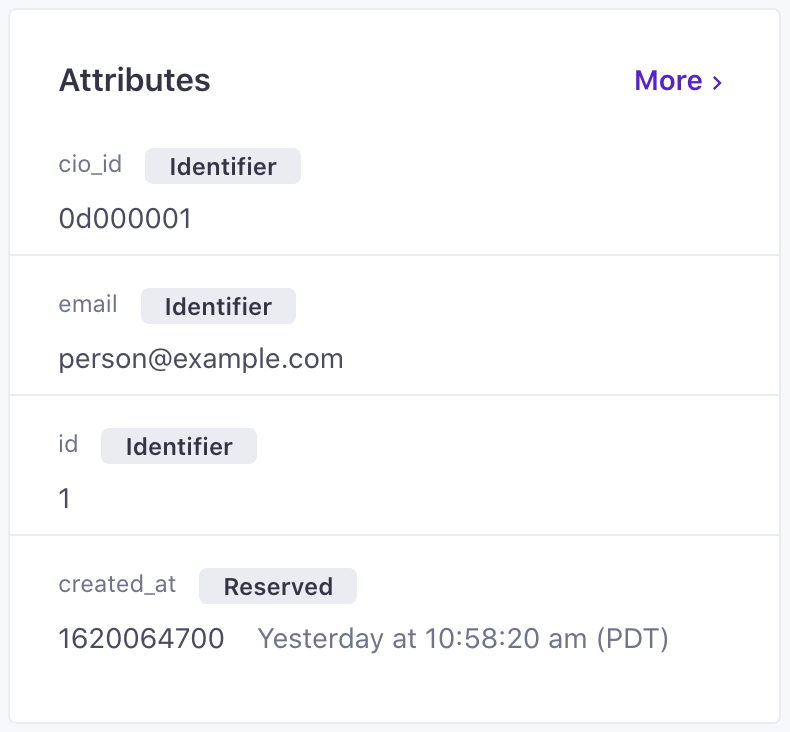
email: A person’s email address. You may want to use this identifier to track leads before they become customers.phone: A person’s phone number, in E.164 format (like+14155552671). You may want to use this identifier for SMS or WhatsApp audiences to ensure that each phone number is unique to a person in Customer.io.id: A case-sensitive, unique identifier that you assign a person. Generally, this value represents a person in your backend systems, like a user ID of someone who has an account with you.cio_id: A unique, immutable identifier that Customer.io generates when you identify a person. When you identify a person bycio_id, you can update that person’s other identifiers.
Typically, you’ll programmatically add or update people through one or more integrations; this way your systems stay in sync and you know your automated messaging is sending to the right people. Keep in mind that most integrations can’t identify The Customer.io operation that adds or updates a person. When you identify a person, Customer.io either adds a person if they don't exist in your workspace, or updates them if they do. Before you identify someone (by their email address or an ID), you can track them anonymously.phone; check which sources support the phone identifier before you rely on it.
Sometimes it’s useful to make one-off updates or use automation actions to update people though. Here’s how you can identify and modify people in our UI:
| Method | Use Case |
|---|---|
| People page | Manually add or update customers. |
| CSV import | Import a file of people. |
| Create or update person action | Create or update a person from the data available in an automation. |
Case sensitivity of identifiers
id values are case sensitive; email addresses are not. phone numbers are matched verbatim, so they must be in E.164 format (like +14155552671) to identify a person. Learn more about how this influences the way we identify duplicate people below.
You should also review our info on case sensitivity across the platform. This will help you when searching your workspace, adding conditions, and adding liquid logic.
How to handle duplicate identifiers
When your workspace identifies people by email, phone, or id, we automatically merge duplicate people. Learn more in Resolve duplicate people.
id values are case sensitive, while email addresses are not. This means that id values of ab100 and AB100 represent two distinct people in your workspace.
Set allowed identifiers in Workspace settings
When you create your workspace, you set which attributes are identifiers. You can always identify people by id and cio_id. By default, you can also identify people by email and phone—both are optional identifiers. To change which optional identifiers your workspace uses, go to your General Workspace settings.
If you’re not sure which setting is best, we recommend you leave the default setting. It doesn’t require you to add an email or phone number to every person, just gives you the option to add or update your people when you identify them by email or phone. It means you can store leads and existing customers so you can identify a person first by their email address or phone number and then by an id you add after they become a paying customer. If the customer ever needs to change their email address, you can do so by using their id to identify them.
Learn more about setting identifiers in Workspace settings.
Set person identifiers
You set identifiers when you create or update people. You must include at least one identifier, based on what your workspace settings define as identifiers.
Learn more in Add or update people.
Update person identifiers
If you want to update a person’s identifiers, you must first understand what your workspace settings are—which of email, phone, and id are allowed identifiers.
This chart shows what it means to update email or id based on these settings. phone follows the same rules as email. Note, cio_id is a permanent id our system generates for each person. It can be useful when trying to update other identifiers for a person and is typically needed when you’re programmatically updating people:
If the workspace allows identification by email, phone, and/or id (The first two charts above):
- You can change a person’s
idwhen you identify them bycio_idthrough the People page, but not CSV imports. - You can change a person’s
emailorphonewhen you identify them byidorcio_id. If the identifier is enabled but you can only reference bycio_id, then you can only usecio_idto changeemailorphone.
If the workspace is id-only (The third chart above):
- You can’t change
idunless you change your workspace settings. - You can update
emailandphonelike any custom attribute.
Delete person identifiers
If your workspace lets you identify people by email, phone, or id, you can remove identifiers as long as each person keeps at least one of id, email, or phone. You can’t leave a person with cio_id as their only identifier. You can always identify people by cio_id; you can’t remove that identifier from a person.
If your workspace lets you identify people by id only, you cannot delete id. Whether you can change it depends on your workspace settings.
You cannot delete cio_id, no matter your workspace settings. This id is always needed for CSV imports and ensures each of your people have a unique identifier, which can help you and our support team troubleshoot issues.