

Profile activity: review changes to your data
This article is about your workspace-wide profile activity. You can also find profile activity for each of your customers within their profile page.
To track changes made by your teammates, go to your Audit Logs.
Overview
On the Profile activity page, you can track the activities performed by people, anonymous people, and objects An object is a non-person entity that you can associate with one or more people—like a company, account, or online course.
Profile activity has two types of dates: Timestamp and Processed At.
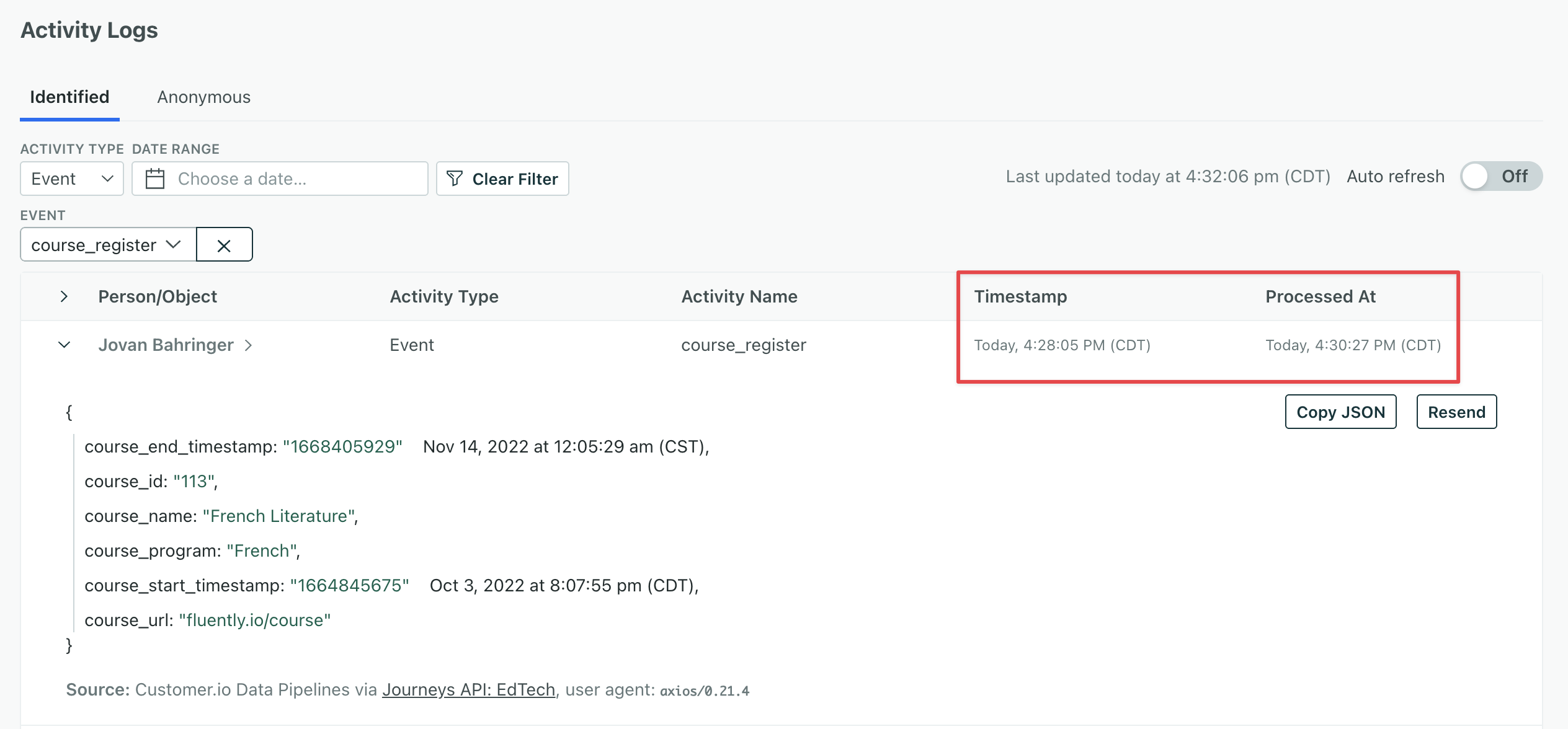
- Timestamp represents the date and time listed on an event. If you don’t set a timestamp, we use the date-time when we receive the event.
- Processed at is the date and time when we process an event. Anonymous events are not processed, and therefore do not have a “processed at” time.
Timestamp may be significantly earlier than Processed At for several reasons:
- Anonymous event merge: Customer.io processes anonymous events after they’re merged into people, which happens when the anonymous user is identified. So it’s possible the event timestamp occurred well before the anonymous event merge.
- Manually set Timestamp: You might manually set timestamps when you backdate events or want to log the exact date-time that an event occurred because it’s not immediately sent to Customer.io.
- Customer.io experienced a processing delay.
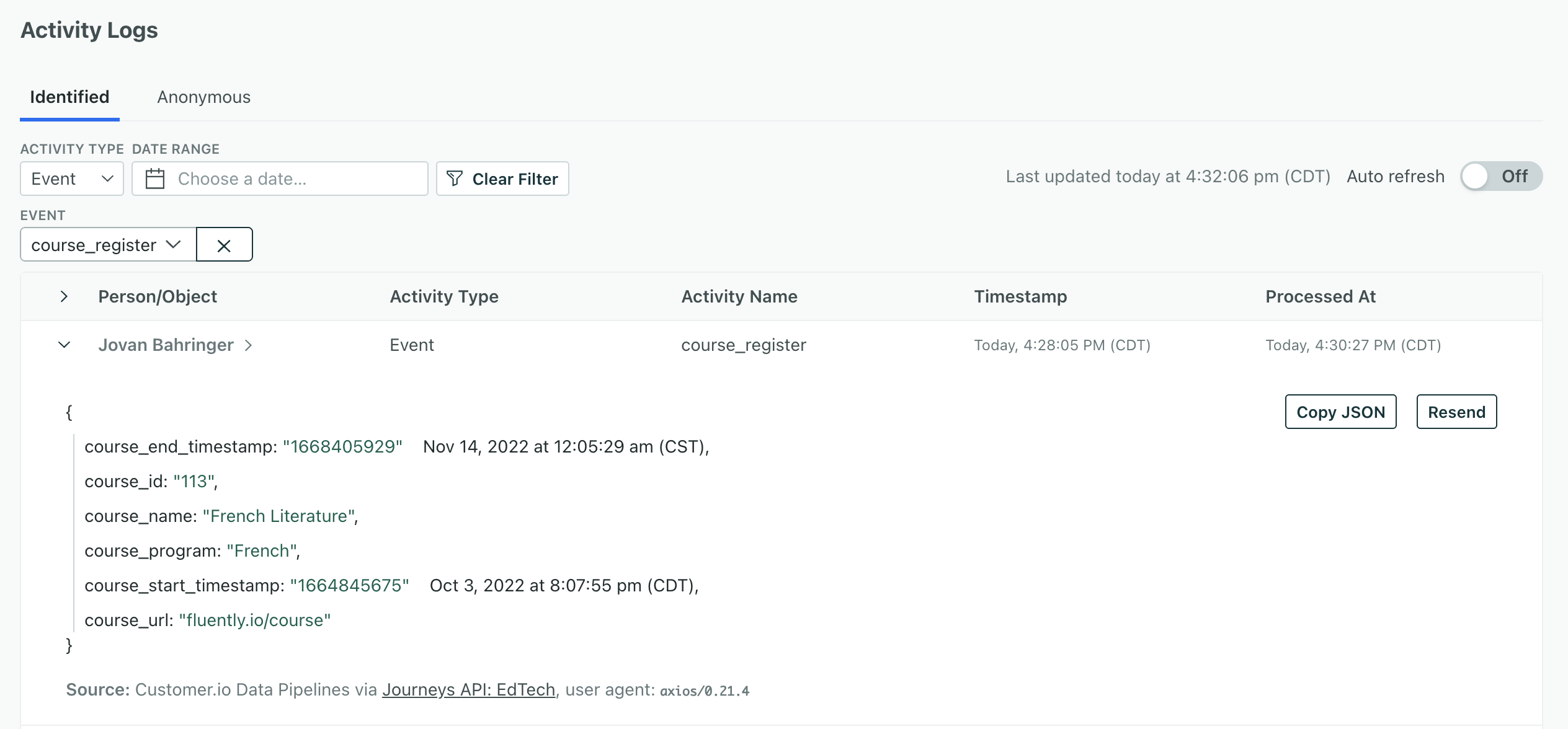
Filter activities
To find specific activities:
- Decide whether you want to filter by Identified or Anonymous users.
- Filter by Activity Type. Some examples include Failed Event, Person Deleted, Bounced Email, or Skipped Update.
- Decide a date range.
Click to view the payload of the activity. Or click the person or object to go to their profile for more info.
Find activity older than 30 days
The Identified tab only shows the past 30 days, but your data is stored well beyond that timeframe. We evaluate data for segment conditions, automation triggers, and liquid personalization no matter how old it is—you just can’t view activities older than 30 days on this page.
To find a specific person’s older activity, export their data. The export isn’t limited to 30 days: it includes a person’s events, attributes, and deliveries. If a person has a very large event history, Customer.io may leave their oldest archived events out of the export.
Troubleshoot automations that didn’t trigger
When an event-triggered automation doesn’t fire the way you expect, check the event’s Timestamp. An event won’t trigger an automation if its Timestamp is:
- Before you activated the automation
- Before a customer person existed
- More than 72 hours before Processed At and the automation’s first action isn’t a longer delay—see Backfilled historical data for more info.
Your event timestamp may fall outside of this criteria if a CSV import doesn’t have a timestamp column, a webhook carries an upstream system’s original event time, or a batch send from one of your data sources is delayed. The event still lands on the person and appears in Profile activity, but its Timestamp falls outside the window an automation needs, so nothing triggers.