

Overview of consent and subscriptions
Customer.io gives you several ways to respect what people want to hear from you: global unsubscribes, topic and channel preferences, sender opt-outs, open-tracking consent, and consent records. Learn what each one controls and how they fit together.
How consent and subscriptions fit together
Customer.io’s consent and subscription tools fall into three groups:
- Tools that decide who receives your messages: global unsubscribes, topic and channel preferences, sender opt-outs, and push permission.
- A tool that decides what you track: open-tracking consent.
- A tool that proves what people agreed to: consent records.
When you need to know why someone did or didn’t get a message, start with the first group.
Decide who receives your messages
A person receives a message only when every check in this flowchart allows it.
Global unsubscribe
The unsubscribed attribute works like a master switch. When it’s true, the person doesn’t receive email, SMS, WhatsApp, or push messages, whatever their other preferences say. They can still receive in-app and Slack messages. A person sets it when they click an unsubscribe link and you don’t use the subscription center, or when they click Unsubscribe from all in the subscription center. You can also set it yourself. Go to Global unsubscribes to learn more.
Topics and channels
If you set up the subscription center, people can opt out of topics, which are the kinds of messages you send, and channels, which are the ways you send them. A person needs to be subscribed to both the topic and the channel to receive a message. Customer.io stores these preferences in the cio_subscription_preferences attribute, and only checks them while your subscription center is enabled.
Opt-ins and opt-outs by channel
Global unsubscribes apply to email, SMS, WhatsApp, and push. So do topic and channel preferences while your subscription center is enabled. On top of those, each channel adds its own ways for people to opt in or out:
- Email: When a person clicks the one-click unsubscribe button in their email client, Customer.io unsubscribes them the same way your unsubscribe link does: from the email’s topic if it has one and your subscription center is enabled, or from all of your messages otherwise. Some email clients unsubscribe people by sending an email to the address in your message’s
List-Unsubscribeheader instead. That always unsubscribes the person from all of your messages. - SMS and WhatsApp: When a person replies STOP to one of your numbers, Customer.io opts them out of messages from that number only. Go to Opt-out keyword handling to learn more.
- Push: The person also needs to allow notifications on their device when your app asks for permission. Go to Device tokens to learn more.
- In-app and Slack: These channels ignore global unsubscribes and topic preferences. They respect channel preferences if you add them as channels in your subscription center. See How topics and channels work together.
Decide what you track
Open-tracking consent controls whether you track when a person opens your emails. It doesn’t affect whether they receive email.
Prove what people agreed to
Consent records are a history of when people opted in to or out of your messages, and how. Use them to answer audit and compliance questions. They don’t affect who receives your messages.
Native unsubscribe links for emails, SMS, WhatsApp, and push
In Customer.io, you can use our default global unsubscribe functionality or set up a subscription center to manage which messages your customers receive. We recommend you create a subscription center to give your customers the option to receive messages they’re interested in without opting-out of all of your messages.
Unsubscribe globally
Out-of-the-box, Customer.io provides global unsubscribe functionality where your customers can subscribe or unsubscribe from email, SMS, WhatsApp, and push notifications. This is great for getting started, but as you grow, you may want to give your customers more control over the messages they receive with subscription preferences.
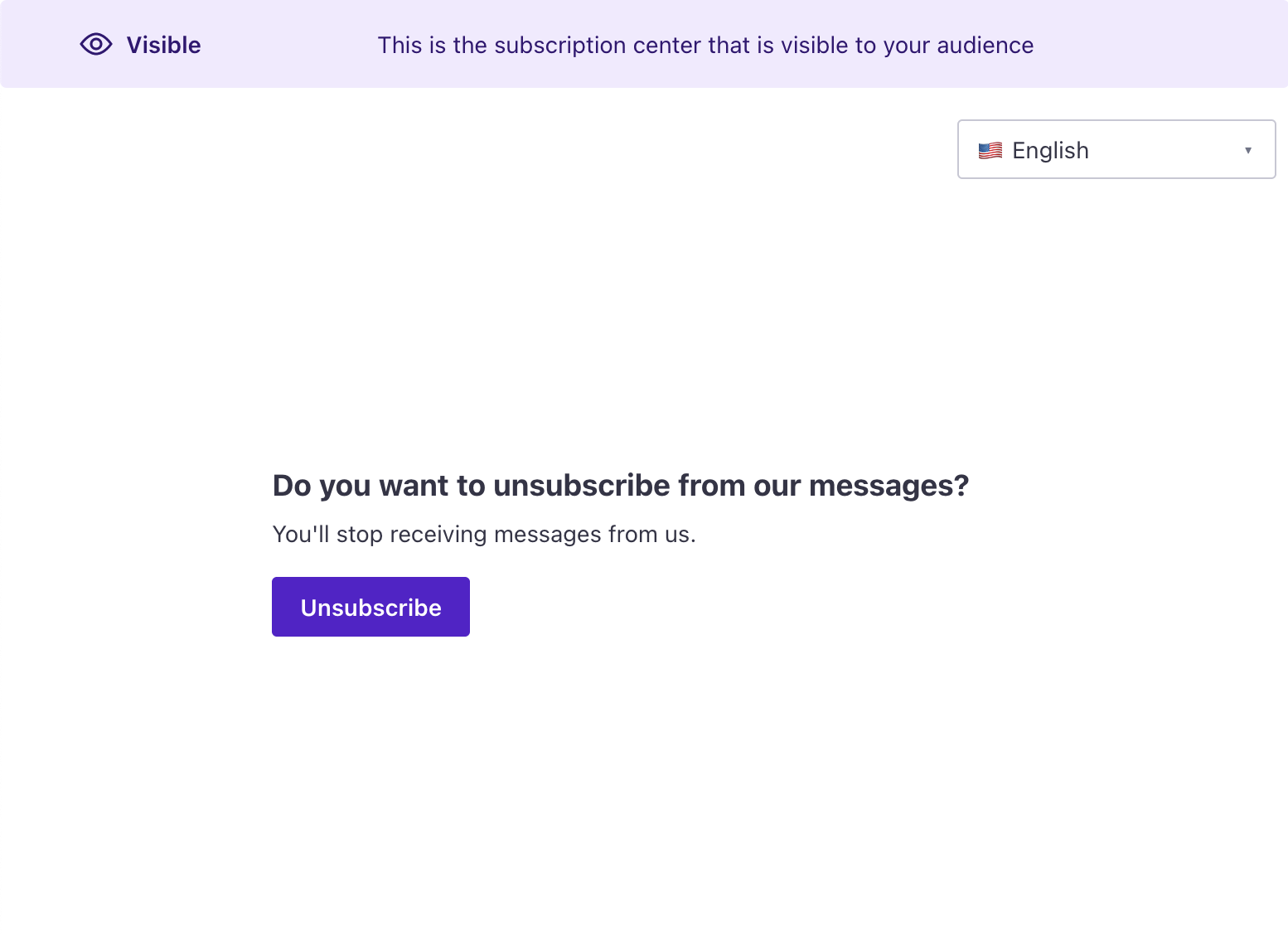
When someone clicks an unsubscribe link in an email, they’ll see this page and they’ll be unsubscribed from email, SMS, WhatsApp, and push notifications.
Subscription preferences
We recommend you set up a subscription center so your customers can control the messages they receive. The subscription center gives people two dimensions of control: topics and channels. Both work the same way—you set them up in Workspace Settings > Subscription Center, configure each as opt-in or opt-out, and provide a name and description.
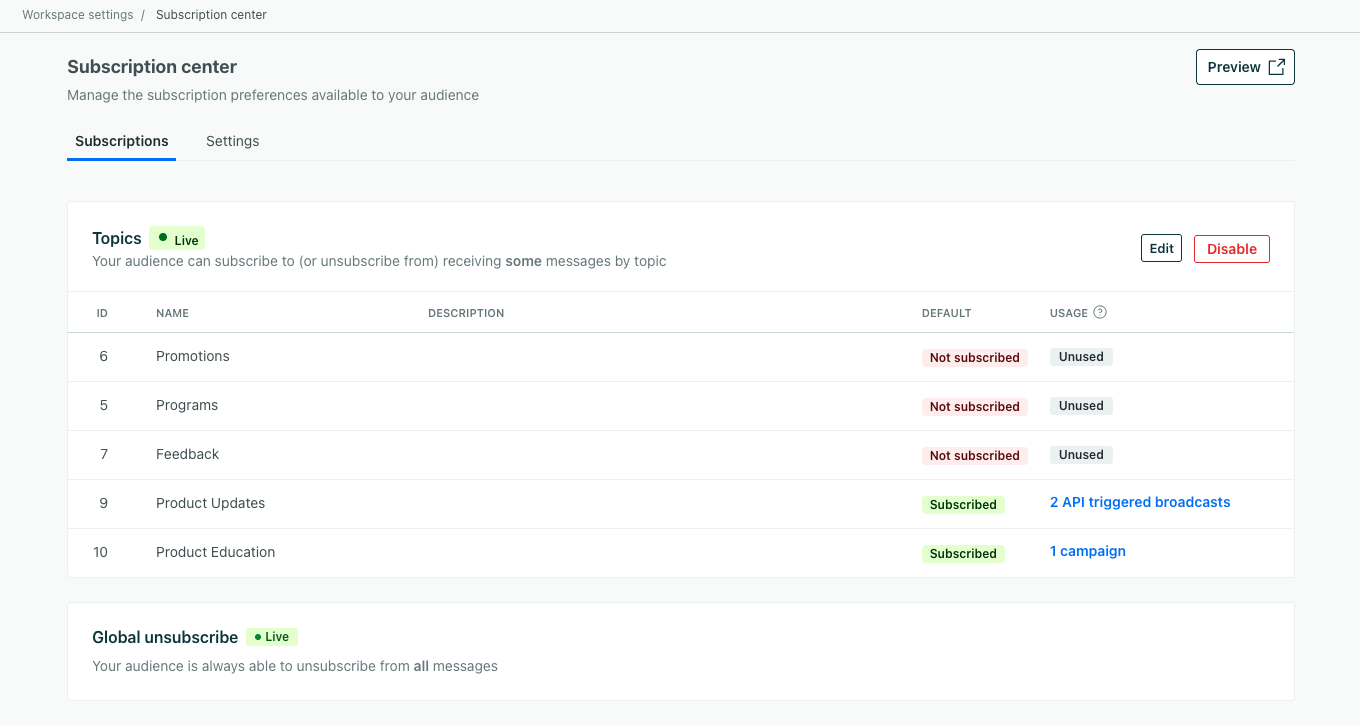
Click Preview at the top right of the landing page to see what our subscription center looks like to anyone who receives your messages.
A person can still globally unsubscribe if the subscription center is enabled. They just click Unsubscribe from all or uncheck every preference and click Save.
Read on to learn how to:
- Set up subscription preferences with topics and channels
- Add unsubscribe URLs to your messages
- Track subscription preferences
- Brand your unsubscribe page
Topics
Topics control what kind of content people receive—for example, “Product Updates” or “Marketing Offers.” Unsubscribing from a topic means your customers no longer receive emails, push, or SMS for that topic.
Channels
Channels control how people receive messages—for example, email, SMS, push, or WhatsApp. Channel preferences let people opt in or out of specific messaging channels, independent of their topic subscriptions. For example, a person might want to receive your “Product Updates” topic by email but not SMS.
You must explicitly add each channel you want people to manage—enabling a messaging channel in your workspace doesn’t automatically add it to the subscription center.
How topics and channels work together
Topics and channels are independent layers of subscription control, but they combine as an AND—a person must be subscribed to both the topic and the channel to receive a message. If either one is opted out, the message is blocked.
For example, say a person is subscribed to your “Product Updates” topic but has opted out of the push channel. If you send a push notification for Product Updates, that person won’t receive it—even though they’re subscribed to the topic. They’d still get Product Updates by email or SMS, assuming those channels are subscribed.
| Topic | Channel | Result |
|---|---|---|
| Subscribed | Subscribed | Message sends ✅ |
| Subscribed | Unsubscribed | Message blocked ❌ |
| Unsubscribed | Subscribed | Message blocked ❌ |
| Unsubscribed | Unsubscribed | Message blocked ❌ |
There’s no per-topic-per-channel preference—topics and channels are independent. A person can subscribe to all topics but opt out of push, or subscribe to push but opt out of a specific topic.
The flowchart in Decide who receives your messages shows this logic visually.
Different messaging channels handle subscription checks differently:
| Channel | Subscription behavior |
|---|---|
| Email, SMS, push, WhatsApp | Respects global unsubscribe, topic preferences, and channel preferences |
| In-app | Ignores global unsubscribe and topic preferences by default; respects channel preferences if you configure in_app as a channel |
| Slack | Ignores global unsubscribe and topic preferences; respects channel preferences if you configure slack as a channel |
| Webhooks | Bypasses all subscription checks |
Unsubscribe links
You can use the following liquid A syntax that supports variables, letting you personalize messages for your audience. For example, if you want to reference a person's first name, you might use the variable {{customer.first_name}}.
{% unsubscribe %}{% unsubscribe_url %}{% manage_subscription_preferences_url %}
{% unsubscribe %} and {% unsubscribe_url %} both work if you’re using our global unsubscribe functionality or subscription topics:
{% unsubscribe %}generates “Unsubscribe” which a person can click to unsubscribe from your messages. If you’re using the subscription center, people can unsubscribe from the specific topic in your message or manage other topics. If not, this page lets your audience unsubscribe from all messages.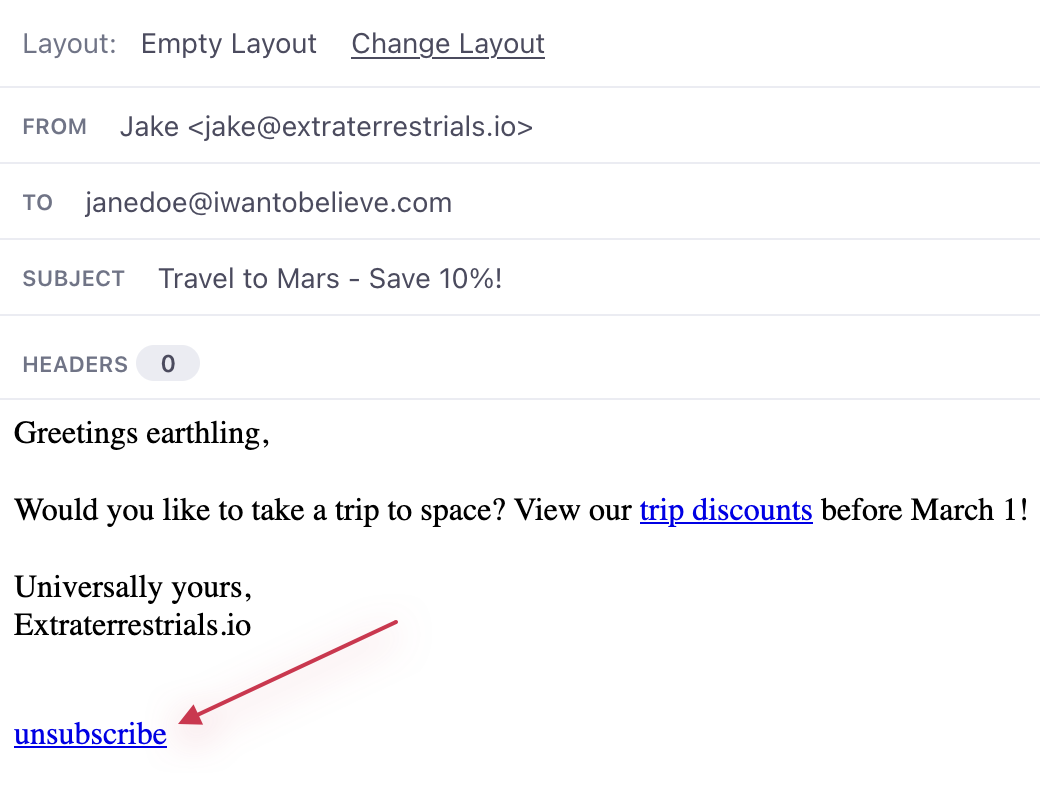
{% unsubscribe_url %}generates an unsubscribe link but lets you customize the text your audience sees.- To hyperlink within the code and rich text editors, place
{% unsubscribe_url %}in the href attribute of an anchor<a>tag in the HTML: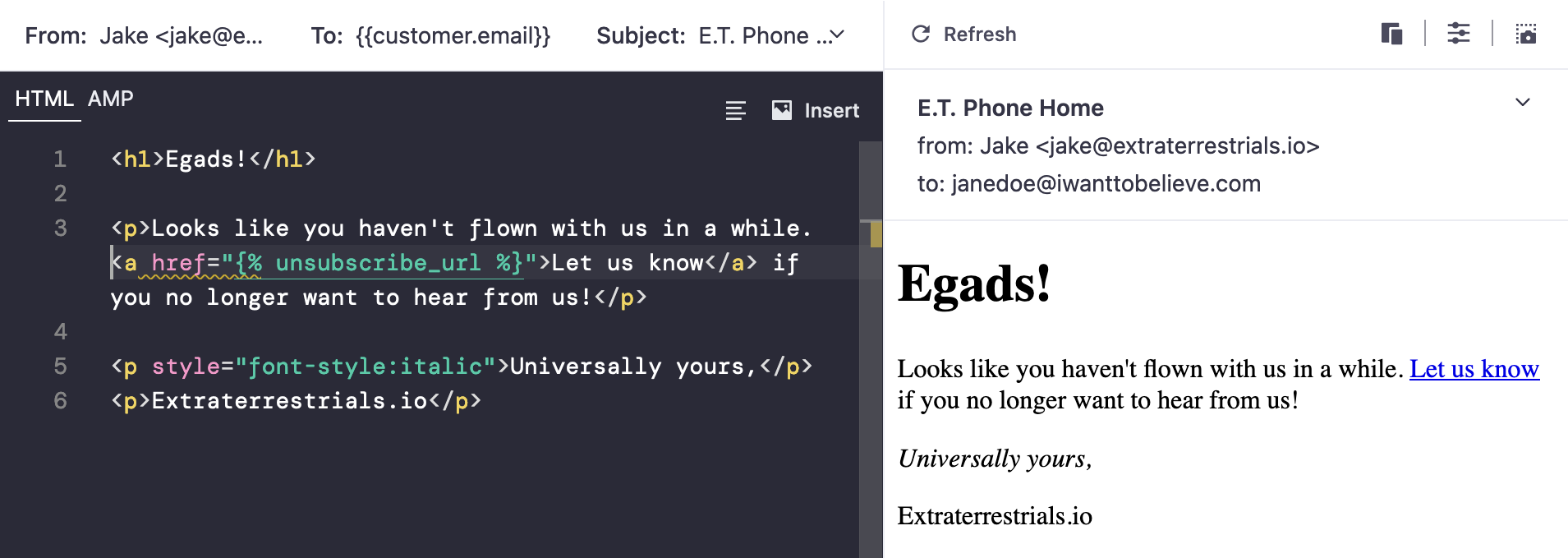
- When using the drag and drop editor, place
{% unsubscribe_url %}in the settings for the link you create: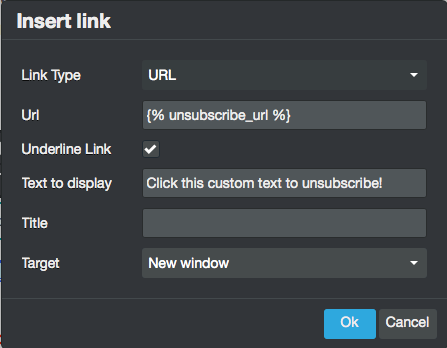
- To hyperlink within the code and rich text editors, place
{% manage_subscription_preferences_url %} only works if your subscription center is enabled:
{% manage_subscription_preferences_url %}generates a link to the subscription preferences page. This is where a person can manage their subscription preferences for all topics and channels. With our standard links - the two tags above - we would first prompt a person to unsubscribe from the topic of the message; this link allows your recipients to go straight to the subscription preferences page. You might do this when you announce a change to preferences, for instance.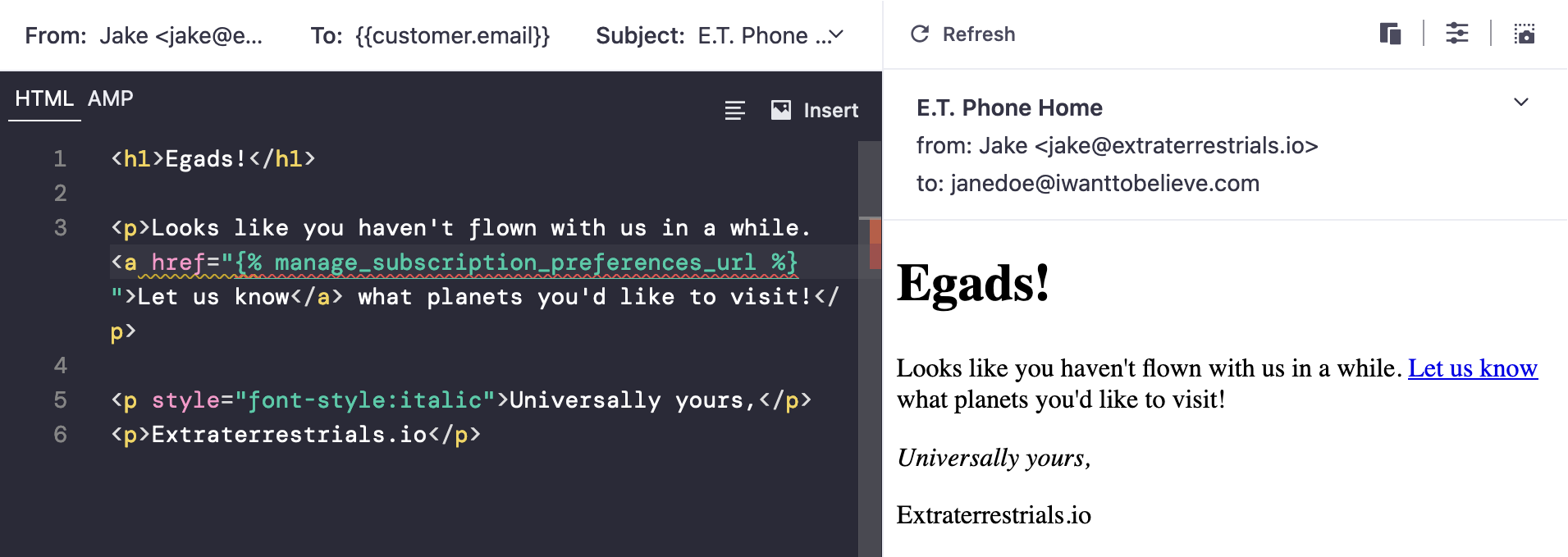
Subscription attributes
Our unsubscribed attribute tracks a person’s global subscription status when the subscription center is enabled and disabled. We also track topic and channel preferences through profile attributes.
unsubscribed
We track global subscription statuses through a profile attribute named unsubscribed. It’s a field that takes boolean values - true or false. Setting this field to true means the person is unsubscribed from email, SMS, and push. Setting this field to false means the person is subscribed to them.
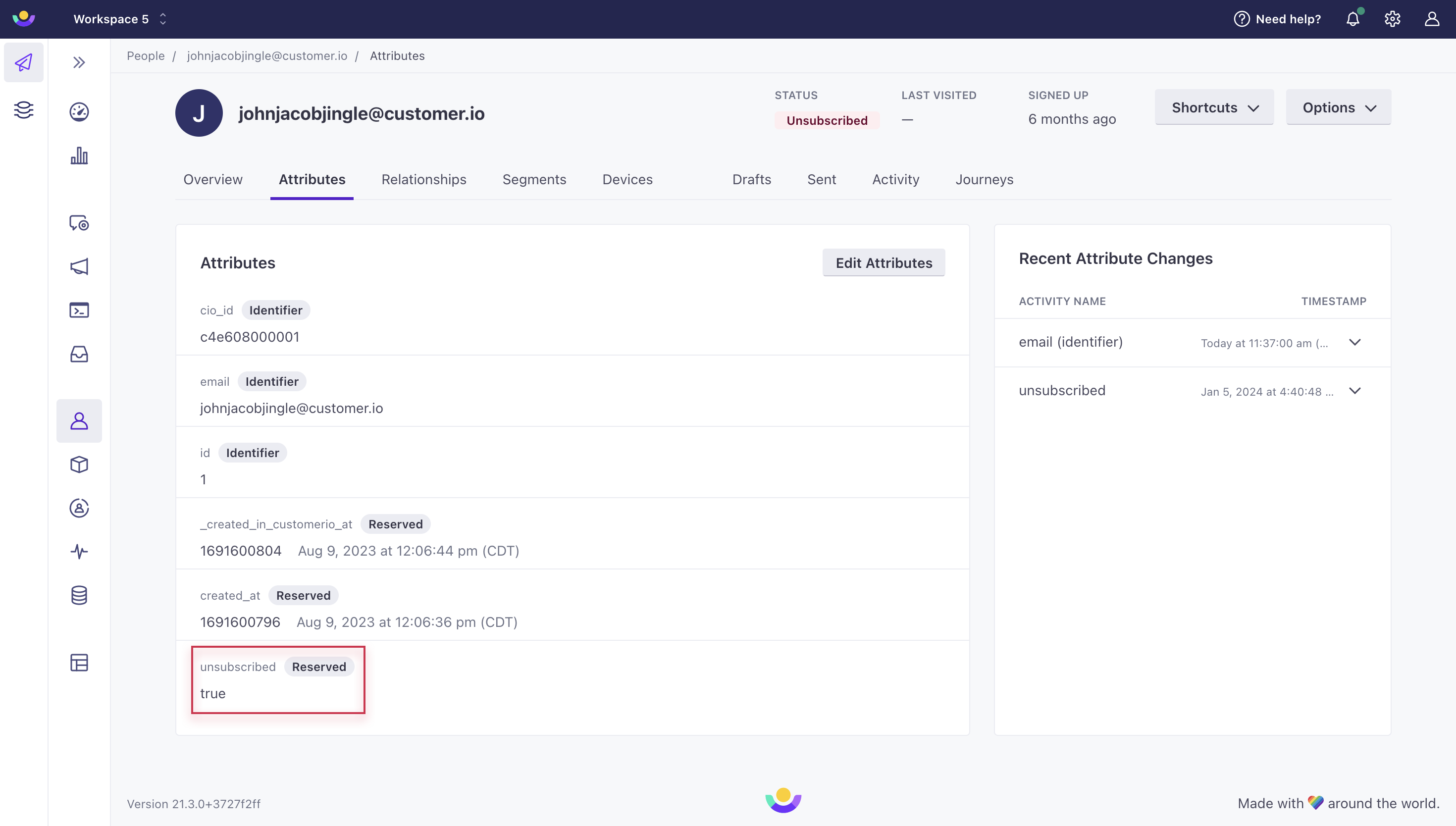
A person can globally unsubscribe when the subscription center is enabled or disabled. If the subscription center is enabled, a person must go to the subscription preferences page and click Unsubscribe from all or they must uncheck all of their preferences and click Save. If the subscription center is disabled, a person clicks Unsubscribe.
Go to Set unsubscribed attributes to learn more.
Topic and channel preferences
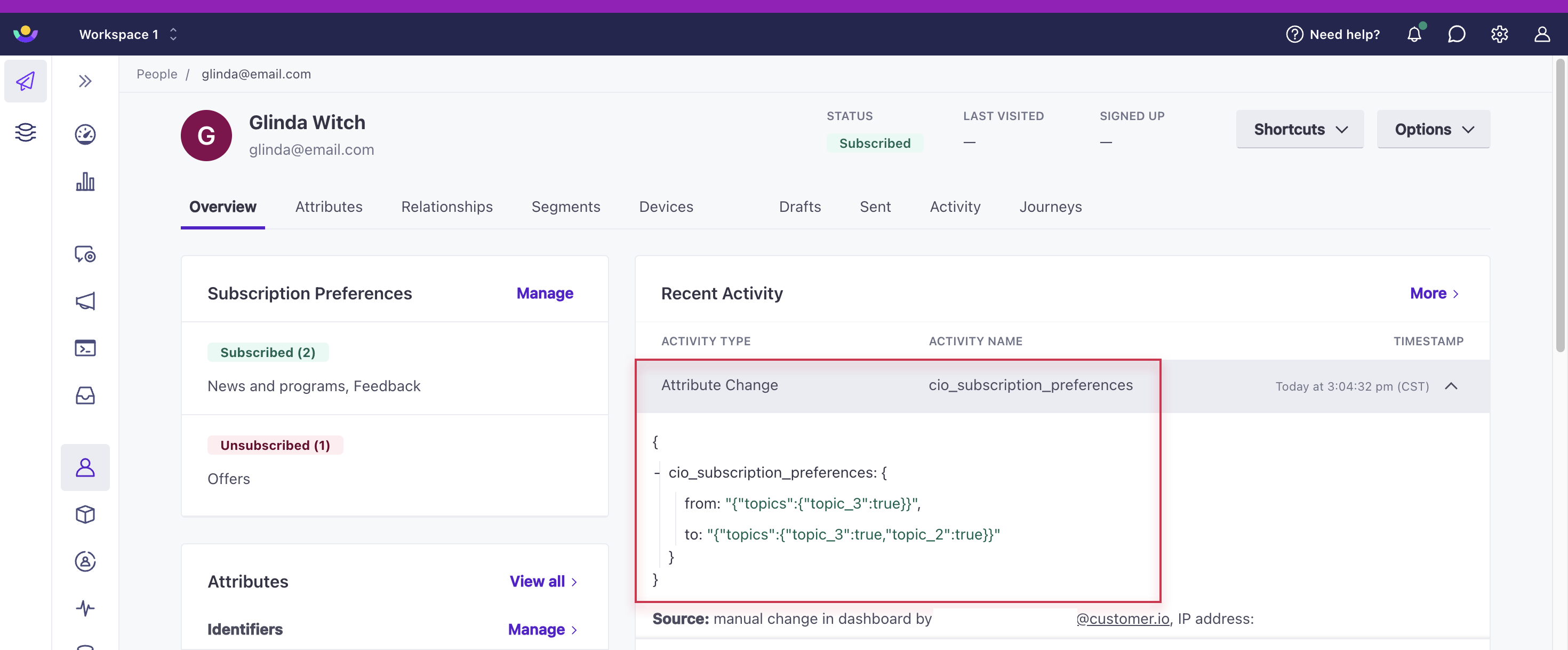
We track subscription preferences in their own table within the Overview tab of a person.
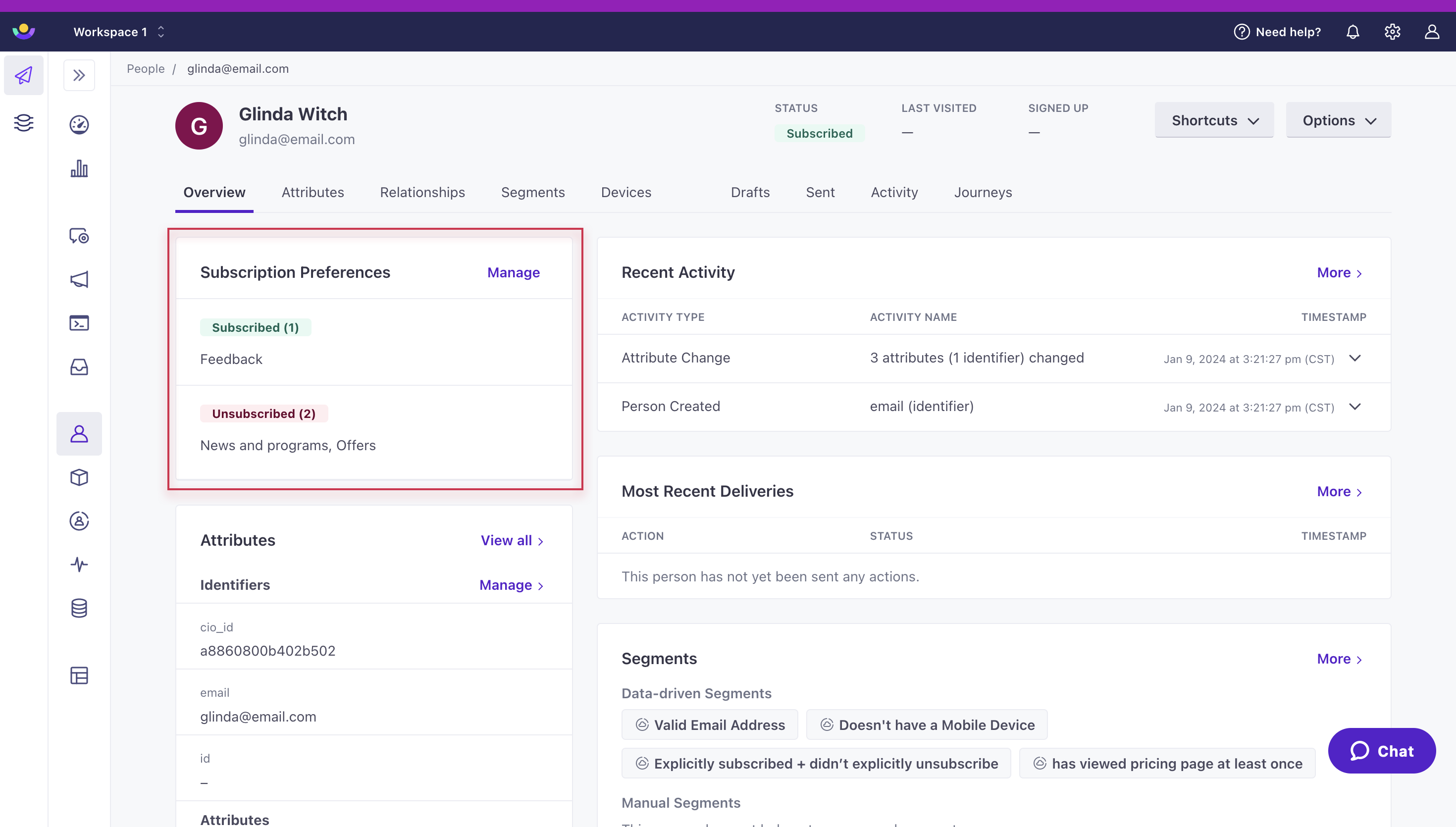
Behind the scenes, both topic and channel preferences exist within a JSON object called cio_subscription_preferences. Topics are identified by numeric ID (so renaming a topic doesn’t affect preferences) and channels use the channel type name.
{
   "cio_subscription_preferences": {
      "topics": {
         "topic_1": true,
         "topic_2": false
      },
      "channels": {
         "email": true,
         "sms": true,
         "push": false
      }
   }
}
Both topics and channels use the same opt-in/opt-out pattern. If a topic or channel is configured as opt-in, people must explicitly subscribe before receiving messages. If it’s configured as opt-out, people are subscribed by default.
Go to Manage subscription preferences to learn more about setting these attributes.