

Respond to inbound keywords
When people send you SMS messages, you can use automations to handle the incoming messages and trigger responses.
How it works
We treat inbound messages like events in Customer.io: they can trigger automations An automated process people enter when they meet your criteria. An automation has a trigger (who enters, and when), a workflow of messages and actions, and exit criteria (when they leave). A person's path through the workflow is their journey. A segment is a group of people in your workspace. Use segments to trigger automations, track membership over time, or fine-tune your audience. There are three types of segments: data-driven, snapshot, and manual. Data-driven segments automatically update when people start or stop matching criteria. Snapshot segments capture everyone who matches at a point in time and only change when you refresh them. Manual segments are static groups of people.
We handle inbound messages by looking for keywords. Think of it a bit like the menu you hear when you call somewhere that has an automated phone system: the phone system prompts the user to press an option on the keypad to advance to the next message.
Except in this case, rather than pressing the right button to advance in a menu, the user responds with a keyword from a list of supported keywords, and you send them down a path based on the keyword they used.
Set up an inbound message automation
- When you set up an automation, click the Trigger.
- Select the Event trigger option.
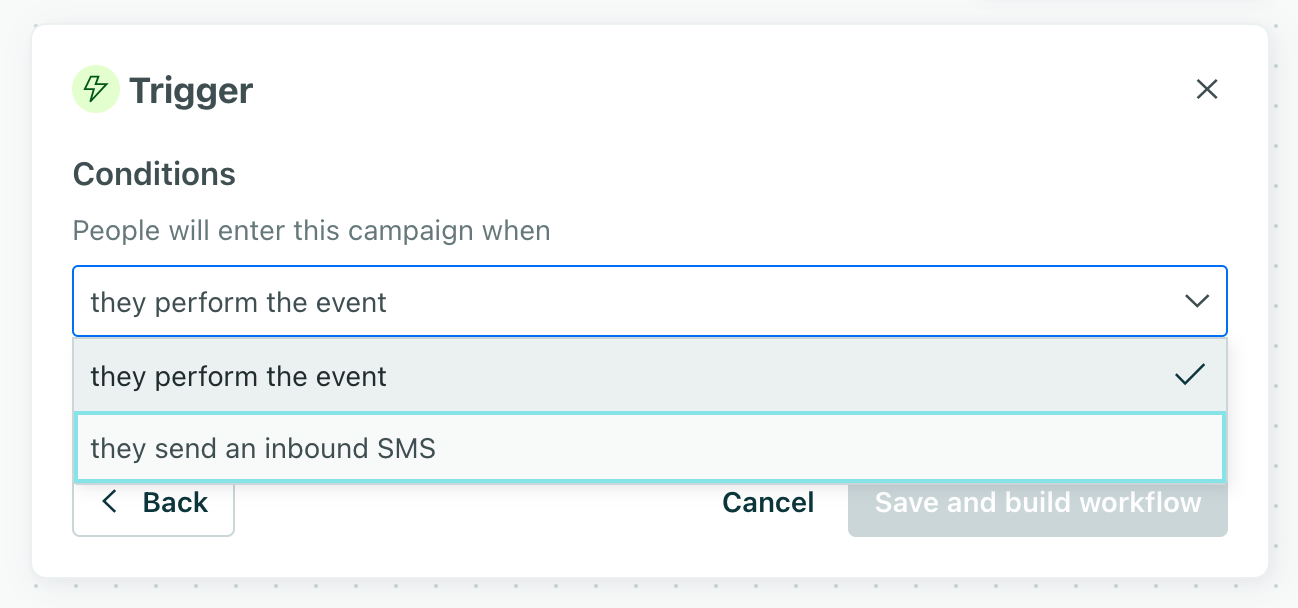
- Change they perform the event to they send an inbound SMS.
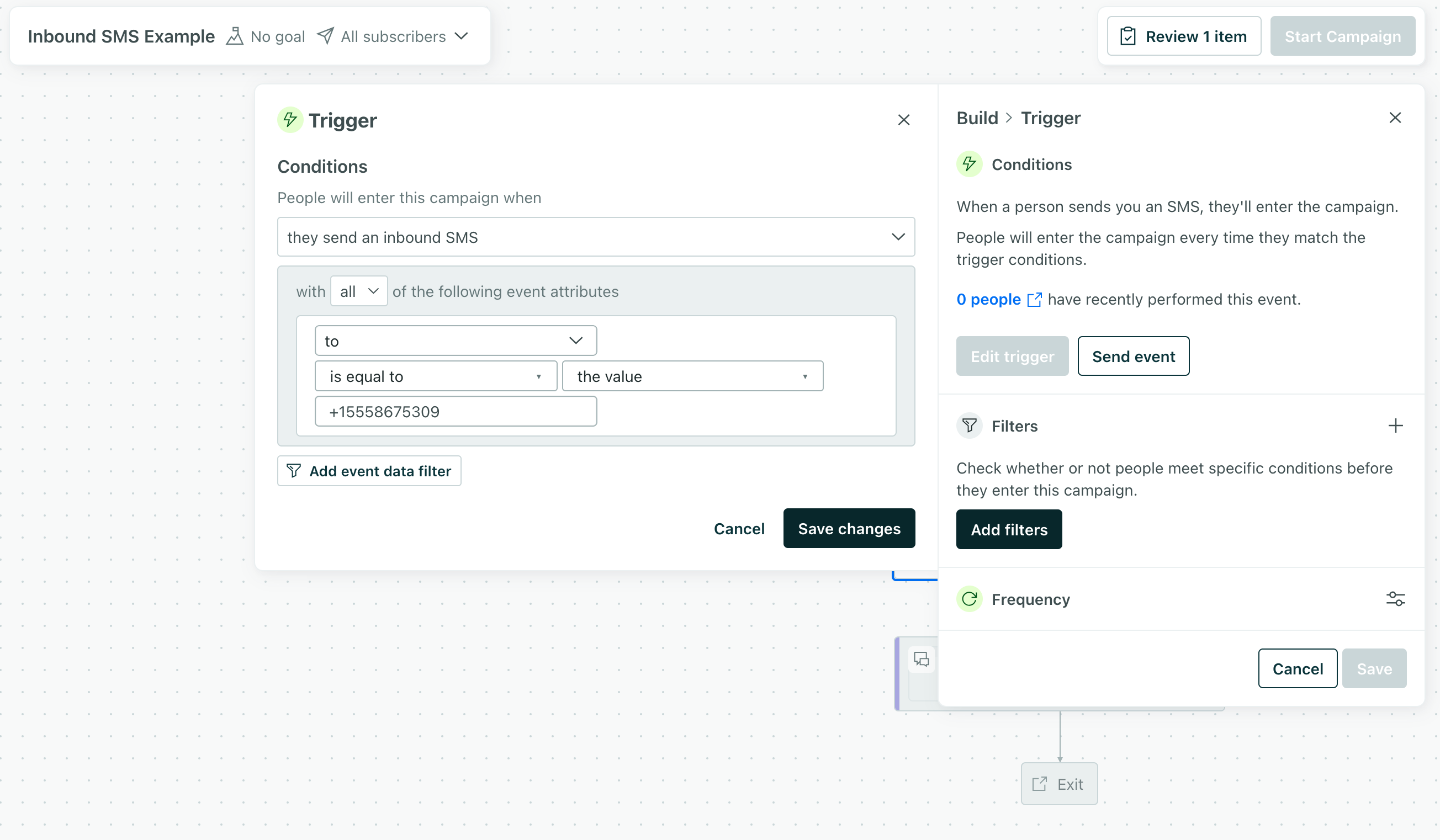
The Inbound message event that triggers your automation doesn’t differentiate between replies to different phone numbers. If you want to handle inbound replies to your different sender numbers independently, you should add conditions to your trigger based on the to value. (Inbound messages come from your audience and to your SMS “sender” number.)
Using inbound message data
Like other event-triggered automations, inbound message variables start with event. For example, referencing the keyword variable would be {{event.keyword}}.
Most of these values come directly from the inbound message, but there are rules to the keyword variable.
{
    "body": "join",
    "from": "+15551234567",
    "in_reply_to": "01HA3K8Z9QF6N4XW2RBT5YVDPC",
    "keyword": "JOIN",
    "messaging_service_sid": "MG1c4d997a947f60dfaddf382a32dffc11",
    "origin_action_id": 41,
    "origin_campaign_id": 9,
    "sid": "SMec32f5db600322613b0c592d4d7417f1",
    "to": "+15559876543"
}
| Variable | Description |
|---|---|
body | The body of the inbound message |
from | The phone number of the person who sent the inbound message |
in_reply_to | The ID of the delivery the person replied to, if we can attribute the reply to one. See Attributing replies to your messages |
keyword | The keyword that the person used, if we can parse it from the body of the inbound message |
messaging_service_sid | The Twilio messaging service SID that the inbound message came from |
origin_campaign_id, origin_broadcast_id, origin_newsletter_id, origin_transactional_message_id | The ID of the automation, API-triggered broadcast, one-time send, or transactional message that started the conversation. A reply carries at most one of these, and none if we can’t attribute it to a message you sent. See Route replies to the right automation |
origin_action_id | The ID of the SMS action A block in an automation workflow—like a message, delay, or attribute change. in the automation or API-triggered broadcast that sent the message that started the conversation. Only present withorigin_campaign_id or origin_broadcast_id |
sid | Twilio’s unique ID for the inbound message |
to | The phone number that the inbound message was sent to, also the “sender” of the message the person replied to |
Keywords
When we parse an inbound message, we normalize recognized terms into keyword values that you can use in automation conditions. This works if the inbound message contains a single keyword.
If an inbound message contains multiple words, the keyword variable will be empty. If this happens, you can respond with a message that tells the user to try again with one of the supported keywords.
We have a set of reserved keywords that carriers and Customer.io handle automatically. You can also set up automations to handle custom keywords, so you can respond to people when they use terms specific to your business.
Reserved keywords
Carriers and Customer.io handle these keywords automatically as a matter of compliance, no matter which provider you send through.
| Keyword | Supported terms | Description |
|---|---|---|
| STOP | STOP, CANCEL, UNSUBSCRIBE, OPTOUT, END, QUIT, REVOKE, STOPALL | Opt-out keywords that unsubscribe the user from SMS messages |
| START | START, UNSTOP | Opt-in keywords that resubscribe the user to SMS messages |
| HELP | HELP, INFO | Keywords that trigger help or information responses |
Because we process these keywords automatically outside of automation workflows, you shouldn’t use them as automation triggers or branch conditions because they might not trigger your automation (or other conditions) as expected.
If you want to listen for reserved keywords, you should base your automation logic on the downstream effects of these keywords instead—like changes to opt-in or opt-out status rather than the START or STOP keywords themselves.
See Opt-out keyword handling to understand how Customer.io handles SMS opt-outs.
Custom keywords
Beyond the default keywords above, you can also tell people to respond with custom keywords like JOIN, PROMO, SURVEY, or DETAILS. For example, if you want to run a survey, you could ask people to respond 1-5 to indicate satisfaction. If you want people to join a list, you could ask them to reply JOIN.
Route replies to the right automation
To start an automation when people reply to a particular message, you can filter the inbound message trigger on the message that started the conversation.
Filter by the message that started the conversation
In your inbound message trigger, choose which replies start the automation with the Replying to setting:
- Anything: Every reply. This is the default.
- Not a reply: Inbound messages that we can’t attribute to a message you sent, like a person texting your number unprompted.
- An automation, broadcast, or other send: Search for and select the automation, API-triggered broadcast, one-time send, or transactional message that started the conversation. The trigger fires for every reply in a conversation that the send started, including replies to messages that later automations sent in that conversation.
Replying to adds trigger filters on the A syntax that supports variables, letting you personalize messages for your audience. For example, if you want to reference a person's first name, you might use the variable origin_* fields of the event. You can add these filters yourself as well. For example, filter on origin_campaign_id equals 9 to handle replies in conversations started from the automation with ID 9. You can also use these fields in your messages with liquid{{customer.first_name}}.{{event.origin_campaign_id}}.
The origin of a reply
The origin is the automation, API-triggered broadcast, one-time send, or transactional message that started a conversation. An automation can send several messages, so the origin is the whole automation, not a single message in it. Each inbound event carries the origin as one origin_* ID field named for that kind, and none if we can’t attribute the reply to a message you sent. The ID in origin_broadcast_id is the ID of the API-triggered broadcast, the same ID you see in reporting webhooks and in messages from the App API.
The origin and in_reply_to differ. in_reply_to is the delivery the person replied to directly. The origin stays the same for the whole conversation, including when an inbound message triggers an automation that replies and the person responds again. In that case, in_reply_to is the automation’s reply, and the origin is still the automation, broadcast, or other send that started the conversation. An automation that a reply triggers doesn’t become the origin of its own messages, so selecting it in Replying to matches only conversations that it started itself.
Use separate senders to keep replies apart
We attribute a reply to the newest SMS message you sent from the number or messaging service the person replied to, within the last 72 hours. If two automations send to the same person from the same number, a reply goes to whichever message went out last. To keep replies to different automations apart, send them from different numbers or messaging services.
Example automation and best practices
In a custom keyword automation, use a multi-split branch to route people based on non-reserved keywords. For example, you might branch on JOIN, PROMO, SURVEY, or DETAILS, then add an “all others” branch for replies you don’t recognize.
Don’t branch on reserved keywords like STOP, START, UNSTOP, HELP, or INFO. For opt-out targeting, use SMS opt-out segments instead of automation branches.
Filter by sender number or outbound message
If you want to handle keywords differently based on the sender number, add a Filter on the to value to your automation trigger. To handle replies to a specific message, use Replying to as described in Route replies to the right automation.
Set up branches to handle different keywords
Set up branches for the custom keywords your message asks people to send. Add an “all others” branch to respond when the reply doesn’t match a supported keyword.
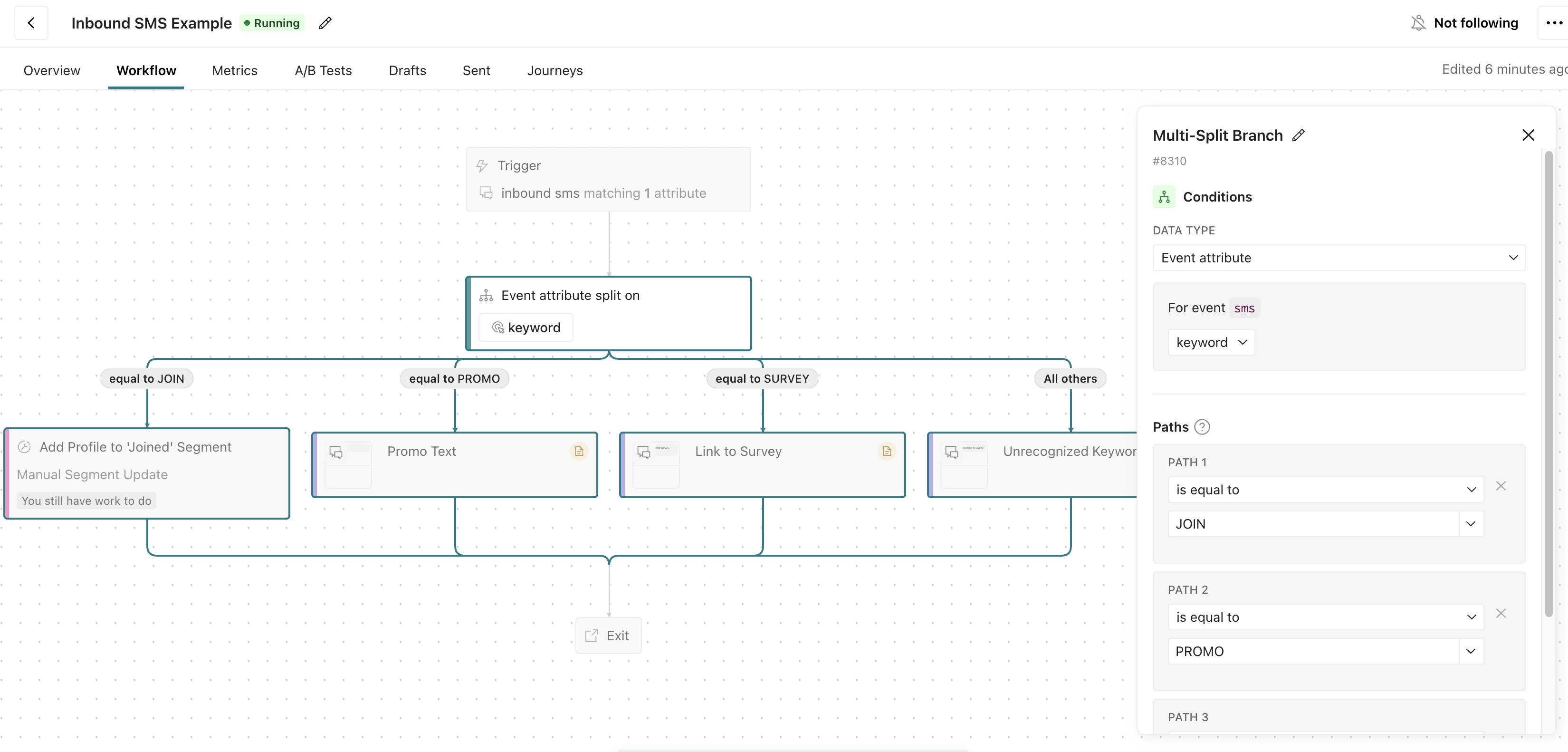
Remember not to branch on reserved keywords like STOP, START, UNSTOP, HELP, or INFO. See Reserved keywords for more information. For opt-out targeting, use SMS opt-out segments instead of listening for reserved keywords.
You cannot wait for subsequent messages in your automation
In your automation, you can’t wait for another inbound message or a follow-up event. You have to handle cascading inbound messages with subsequent automations.
You can still use the Wait Until action to wait for other conditions, but you cannot currently wait for a separate inbound message to continue through an automation.
When to limit send rates
If you want to send an SMS broadcast or one-time send, and you want to respond to inbound messages on the same “sender” number in Customer.io, you should throttle your broadcast so that your inbound-based responses aren’t delayed by messages queued from your broadcast.
Imagine you send a broadcast to 100,000 people. How fast a single phone number can send depends on the type of number and your trust score. Even at the highest rate of 225 messages per second, this broadcast takes around 444 seconds, or around 7 minutes, to send. If someone replies as soon as they receive your message, Customer.io adds your response to the end of the queue, so it waits until the rest of the broadcast finishes sending.
Throttling broadcasts and one-time sends ensures that your sender phone number can continue to send messages as it normally would, without being blocked by messages queued from your broadcast.