

Track links with your domain
Set up link tracking for your domain
Customer.io provides link tracking by default, but you can also track links on your own subdomain. To use a custom subdomain for tracked links using HTTP in Customer.io, add a CNAME (Canonical Name) record to your DNS host that aliases our tracking subdomains. These are e.customeriomail.com or e-eu.customeriomail.com depending on your Customer.io account region.
To use a custom subdomain for tracking links using HTTPS, you’ll need to take additional steps outside of Customer.io, such as setting up a reverse-proxy server.
Automatic setup (HTTPS)
You can click Set up automatically to configure your HTTPS link tracking records without leaving Customer.io. Automatic setup uses Entri, a secure third-party service that connects to your DNS provider and applies the required records for you. Entri is SOC2 and GDPR compliant and doesn’t store your credentials or personal information.
- Go to Settings > Workspace settings > Email and click one of your domains.
- Click Set up automatically in the Link tracking section.
- Click Continue and log into your DNS provider when prompted. Entri applies the
CNAMEandTXTrecords automatically.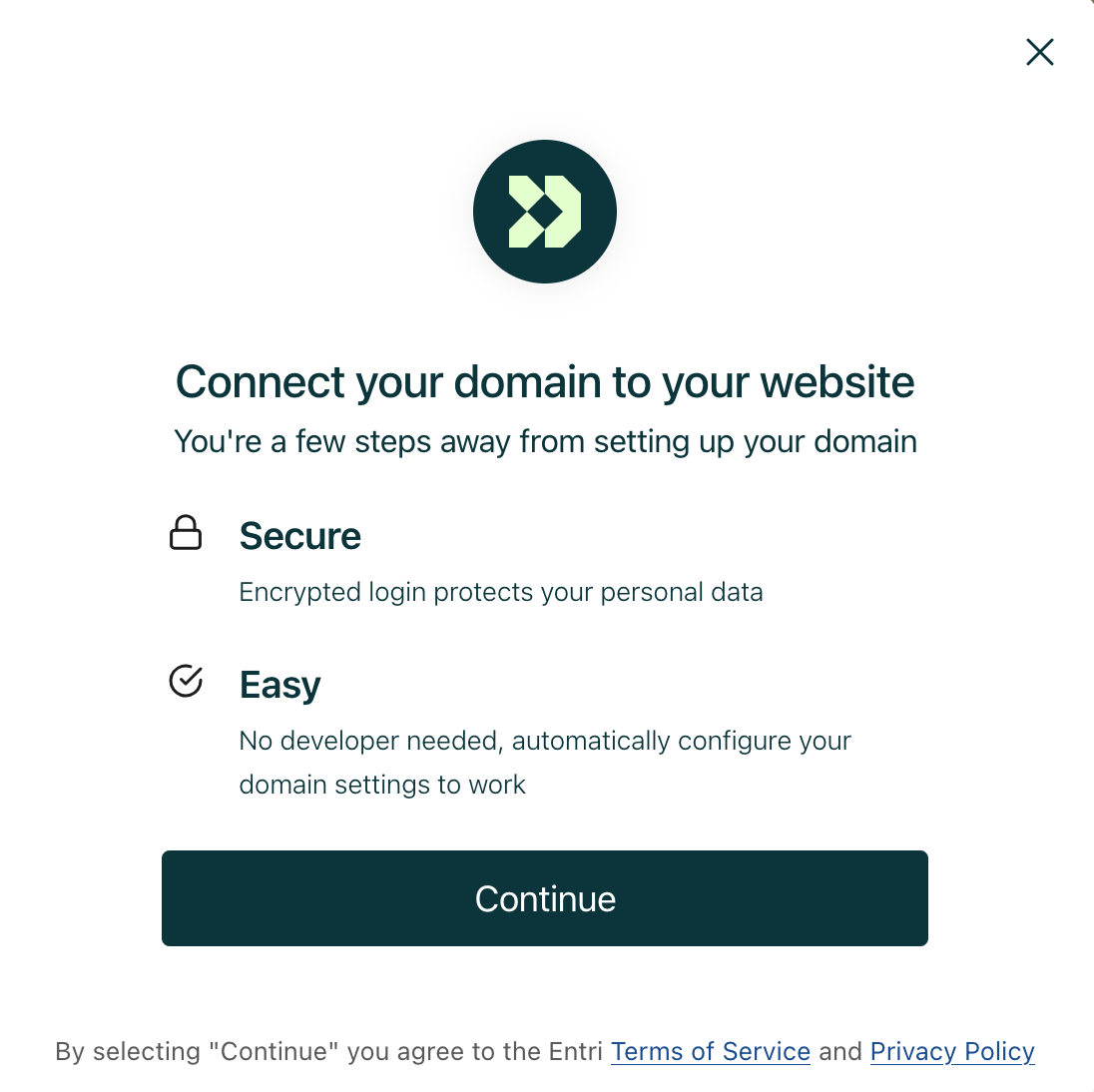
- Close the window when the setup completes. Verification usually finishes in minutes, but it can take up to 72 hours.
If your DNS provider isn’t supported by Entri, or if you use HTTP link tracking, use the manual setup below.
Manual setup
To configure link tracking records manually:
-
Go to Settings > Workspace settings > Email and click your domain.
-
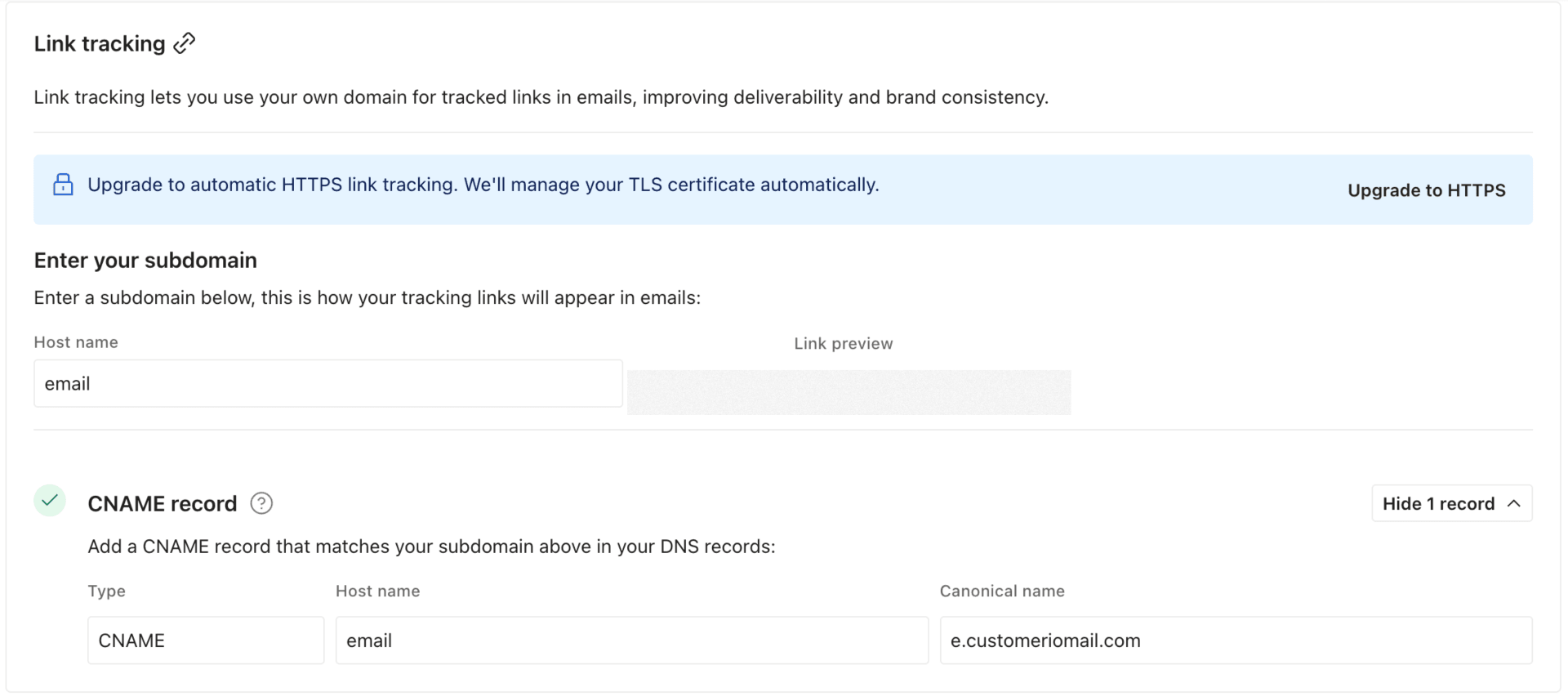
Enter your subdomain in the Host name field of the Link tracking section. Click first if the field is locked, then click Update after you enter the subdomain.
-
Click Set up manually if the section shows Set up automatically.
-
Add the records in the Link tracking section to your domain’s DNS host.
-
Return to the Link tracking section of your domain and click Verify records. Customer.io checks that the records are in place. It can take some time for DNS changes to take effect.
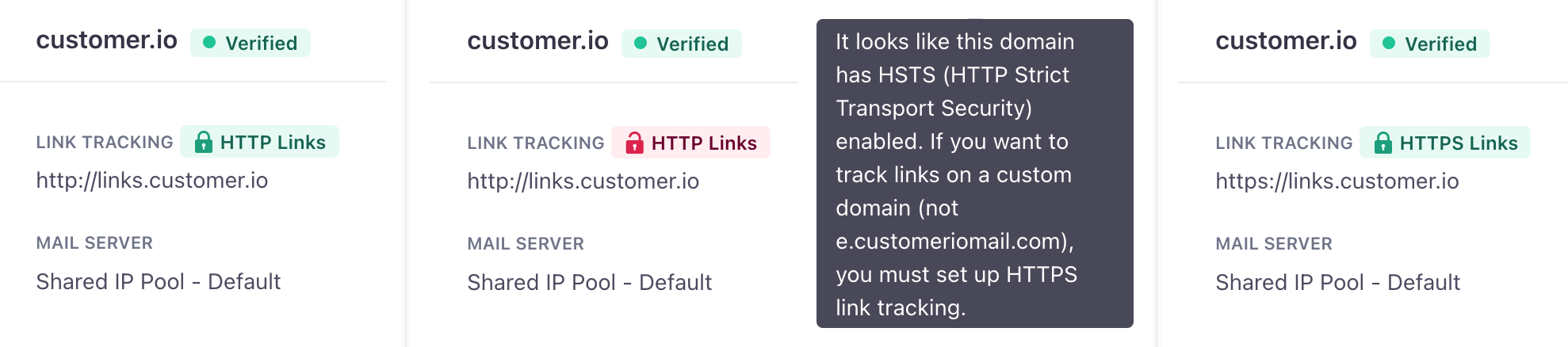
On the left hand side of the tab, you will see the status of your link tracking.
- HTTP link status:
- A green HTTP link status (shown bottom left) means we are able to connect to your
CNAMEdomain overr HTTP without error. Unless you have successfully configured HTTPS Link Tracking, we’ll generate HTTP links whenever link tracking is enabled in your messages. - A red HTTP link status (shown below middle) indicates that our check found a HSTS (HTTP Strict Transport Security) policy on your domain. This means that you must set up HTTPS Link Tracking in order for your custom subdomain to resolve your tracked links correctly.
- A green HTTP link status (shown bottom left) means we are able to connect to your
- HTTPS link status:
- A green HTTPS link status (shown below right) means you have successfully configured HTTPS Link Tracking and we’ll generate HTTPS links in messages sent from this domain that have link tracking enabled. The domain must also be verified before your tracked links can use this domain.
HTTPS Authentication
To verify HTTPS for non-mobile links, visit HTTPS link tracking. If you also need support for links to iOS or Android apps, checkout universal links.