

Send a WhatsApp message
After you've enabled WhatsApp support and created WhatsApp-approved templates, you can send WhatsApp messages in any automation or broadcast.
Set up your WhatsApp message
-
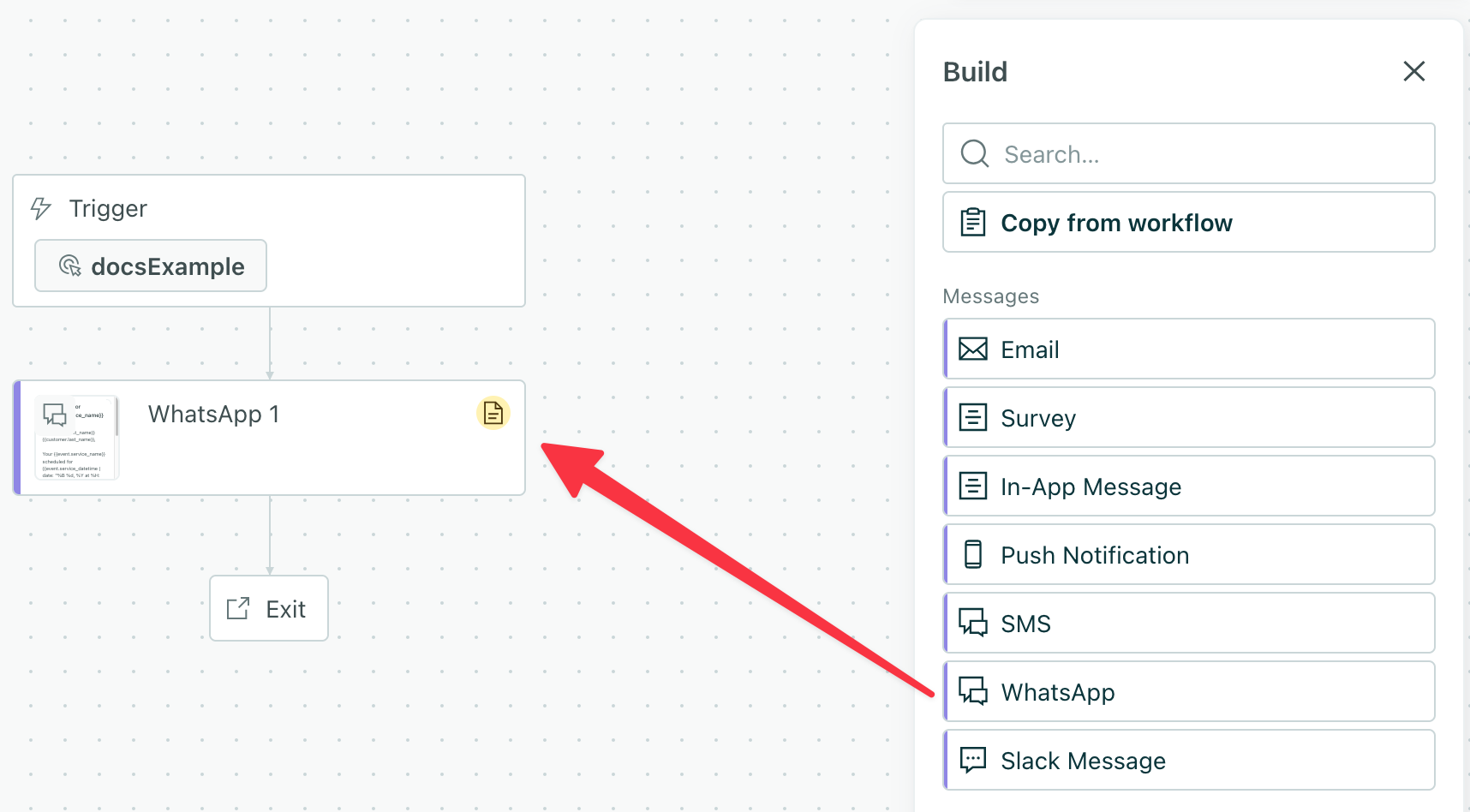
Add a WhatsApp message block to your automation or broadcast workflow.
-
Click Add content.
-
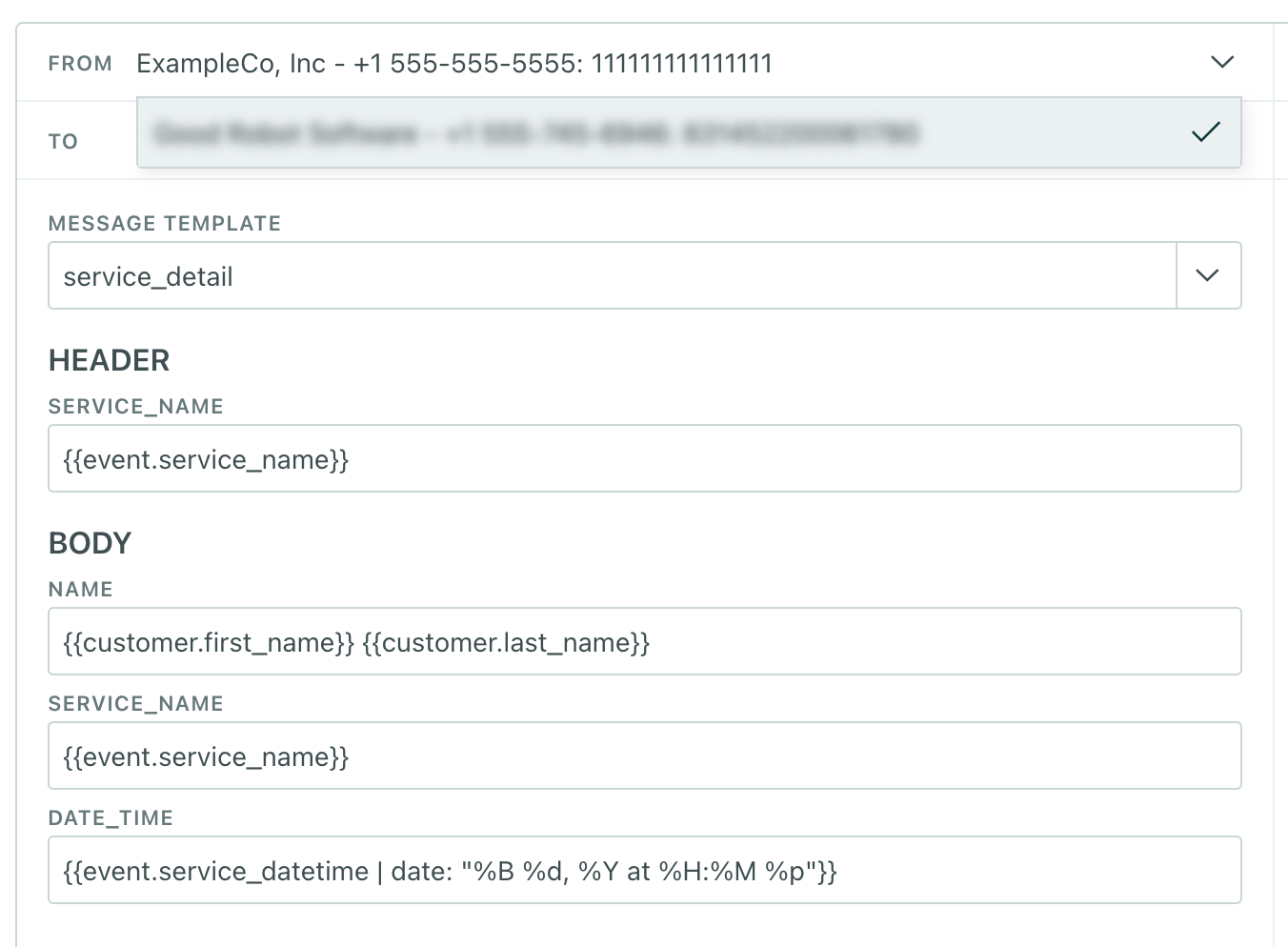
Select a WhatsApp approved sender in the From field. If you only have one sender phone number, it’s already selected for you.
-
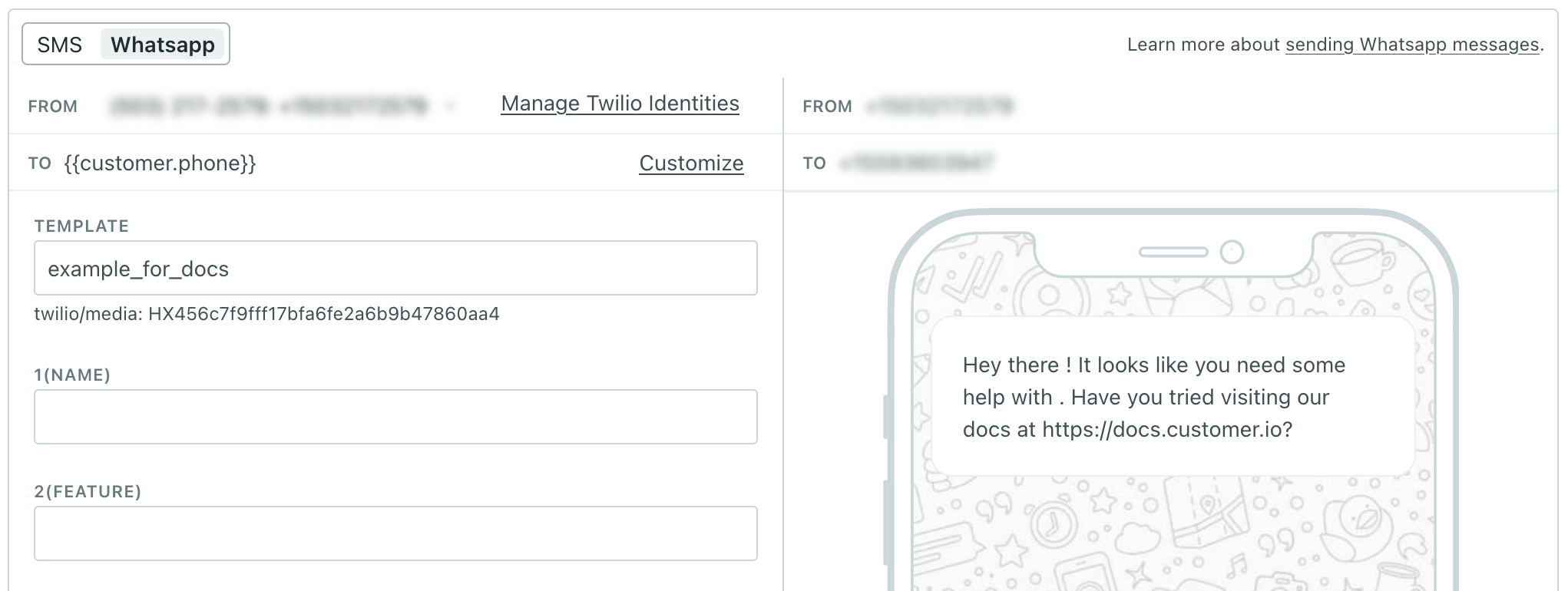
In the Template field, search for the template you want to use for your message. If you don’t see the template you’re looking for, you may not have created it yet or it may not have been approved by WhatsApp.
-
Fill in the templated variables for your message. You can use liquid
A syntax that supports variables, letting you personalize messages for your audience. For example, if you want to reference a person's first name, you might use the variable
in these fields to personalize your message.{{customer.first_name}}.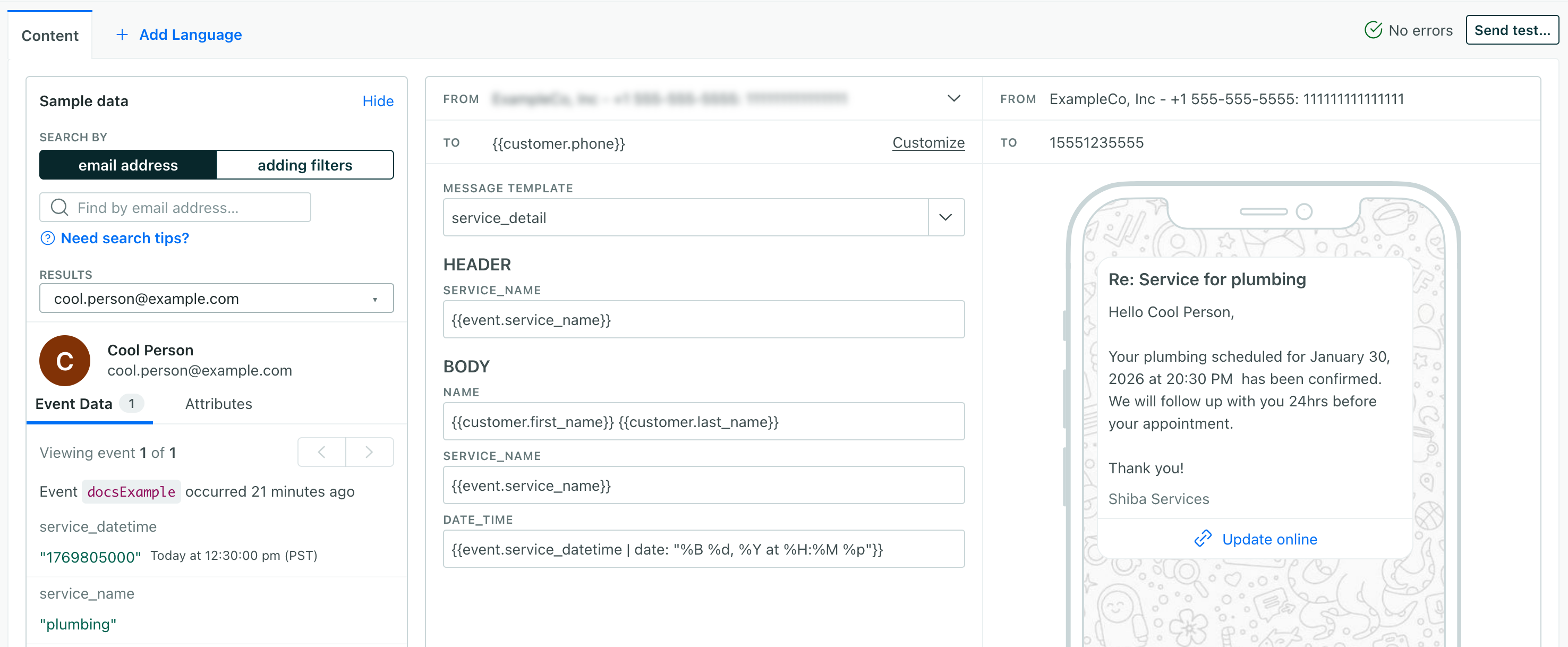
-
Click Save.
Localizing WhatsApp messages
WhatsApp supports different languages, but each WhatsApp template has only one language. To translate a message, you create a template for each language. Then you click Add language on your message, and you set the template for each language variant.
When you add a language, the new variant starts as a copy of your Default message. What happens next depends on how you send WhatsApp and where you created your templates:
| How you send WhatsApp | Where your templates come from | How each variant gets its template |
|---|---|---|
| Native integration | Created in Meta | In automations and API-triggered broadcasts, Customer.io picks the template for you. |
| Native integration | Created in Design Studio | You pick the template on each variant. |
| Twilio | Created in Twilio | You pick the template on each variant. |
Templates you created in Meta
In Meta, give the translations of a message the same name, like order_update, and set a different language on each one. When you add languages to a message in an automation or API-triggered broadcast, Customer.io switches each new variant from the Default message’s template to your template with the same name in the variant’s language. Customer.io looks for the closest template in this order:
- A template in the variant’s exact language and region.
- A template in the variant’s language with no region.
- A template in the variant’s language for a different region, if you have only one.
Customer.io only switches to the closest template if Meta has approved it. If the closest template is still waiting for approval, the variant keeps the Default message’s template, and Customer.io doesn’t try the next template in the list.
For example, here’s what an es-MX (Spanish, Mexico) variant uses, depending on the order_update templates you have in Meta:
Your order_update templates in Meta | The es-MX variant uses |
|---|---|
es_MX, es, and es_ES | es_MX |
es and es_ES | es |
es_ES only | es_ES |
es_ES and es_AR | No match. Customer.io doesn’t choose between regions. |
es_MX waiting for approval, and es | No match, because the closest template isn’t approved |
| None in Spanish | No match |
When Customer.io switches a variant to a new template, it copies the values you entered for the Default message’s template variables, as long as the new template has the same variables. Customer.io doesn’t translate text you typed into a variable, so check those values on each variant.
If Customer.io doesn’t find a match, the variant keeps sending the Default message’s template. Customer.io only matches templates at the moment you add a language. If you create or get approval for a template later, or you add languages to a one-time send or a transactional message, set each variant’s template yourself.
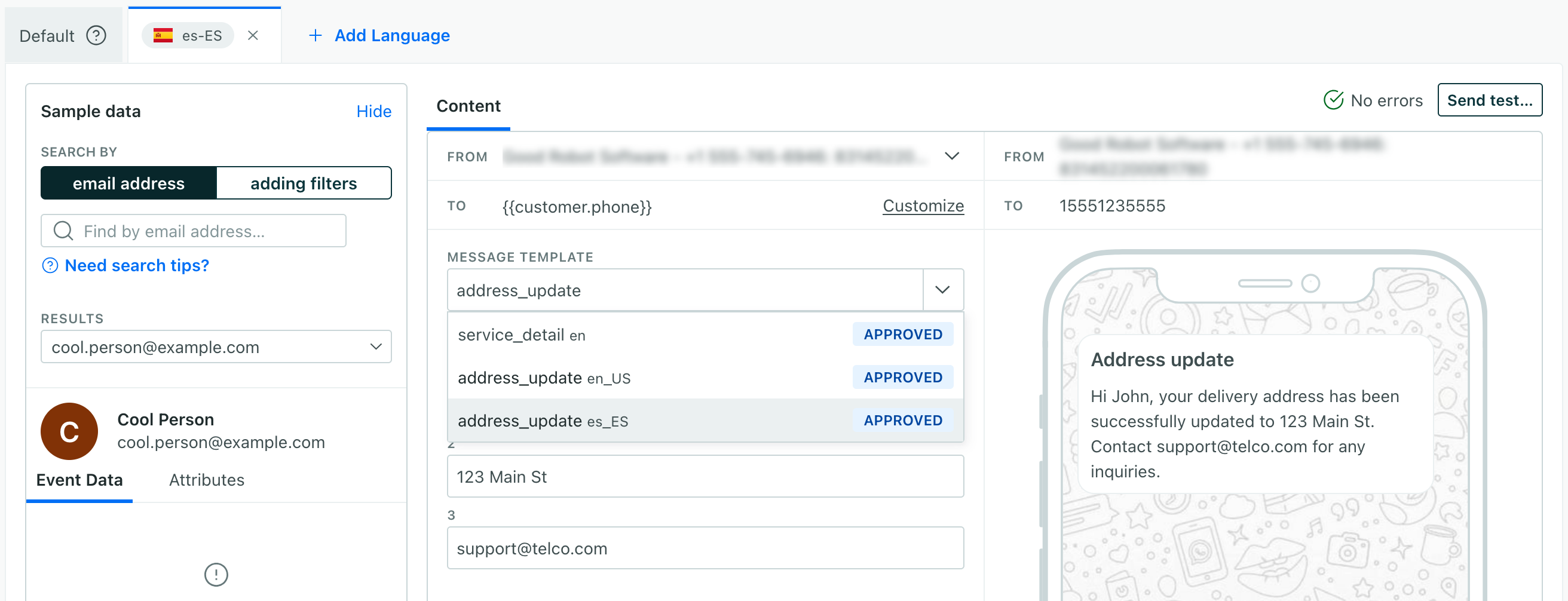
When a variant’s template is in a different language than the variant, the variant shows a Template language doesn’t match banner:
- If Meta has a template with the same name in the variant’s language, click the banner’s button, like Use es_MX template, to switch to it. If Meta hasn’t approved that template yet, the banner tells you, and the language variant can’t send messages until Meta approves it.
- If Customer.io can’t find a template for the variant’s language, the banner says Meta has no version in that language. This also happens when you have templates for several other regions of the language, like
es_ESandes_ARfor anes-MXvariant. Create a template for the variant’s language in Meta, or choose a template yourself.
Design Studio templates
If your Default message uses a Design Studio template, Customer.io doesn’t pick templates for you. Create a Design Studio template for each language and get it approved. Then, after you add languages, each new variant opens on the template list. Pick the template for that variant’s language.
Twilio templates
If you send WhatsApp messages through Twilio, create a template for each language in Twilio. After you add languages, select the template for each variant’s language.
Business-initiated vs user-initiated sessions
The kinds of messages you can send through WhatsApp change depending on whether you or your audience initiate the conversation. These are called business-initiated and user-initiated (or conversational messaging) sessions respectively. In general, WhatsApp messages sent through Customer.io are business-initiated.
User-initiated conversations can be more flexible than business-initiated messages, providing a 24-hour window during which you can send free-form replies and use special templates, like location-based or list-based messages, that aren’t available in business-initiated conversations.
Customer.io supports inbound WhatsApp messages, so you can respond to your audience when they reply to or message you. Inbound messages can trigger automations, add people to segments, and mark your messages as replied. See Inbound messages to learn how to handle replies and user-initiated conversations.