Review & retry messages blocked by a message limit
You can review and retry messages blocked by a message limit by filtering for Undeliverable and Attempted messages.
Review messages not sent due to a message limit
Messages blocked by your message limit are marked as Undeliverable or Attempted. In both cases, you need to read the explanation to find out if the status is due to a message limit specifically because these statuses cover multiple situations.
Your workspace does not retry Undeliverable messages, but your workspace does retry Attempted messages. You can manually retry messages with either of these statuses.
To find messages marked as Undeliverable, you can filter for them from your workflow or from Message activity, which span all workflows. Then you can decide whether to retry a message.
Find all messages that hit the message limit
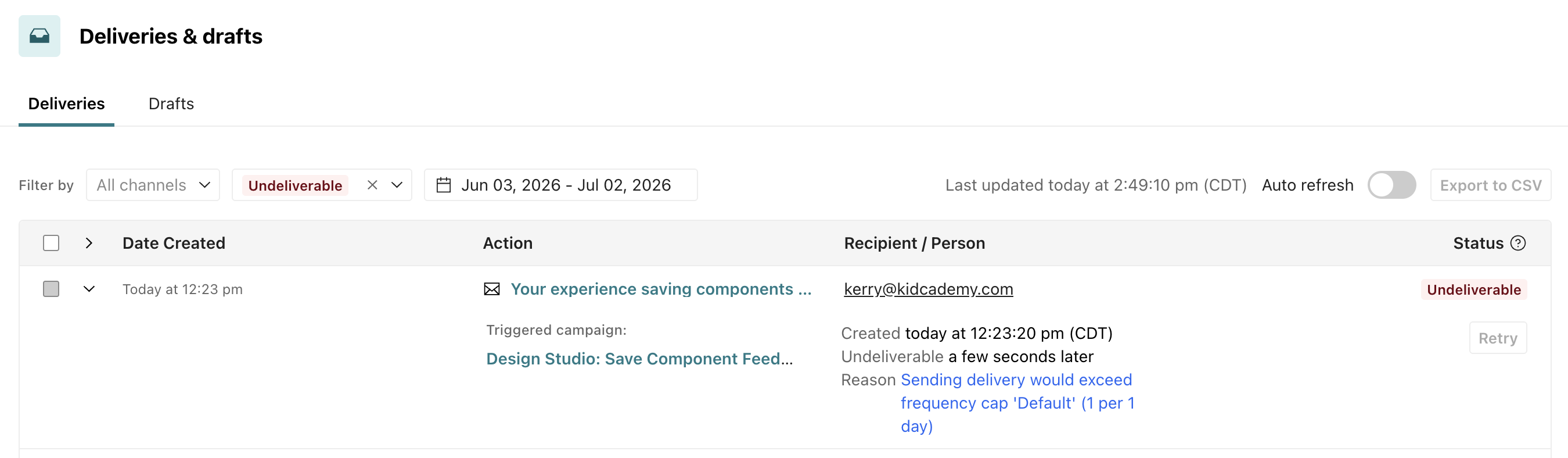
Go to Message activity and filter for messages with the Undeliverable status. Expand an item in the table to check the reason. If the message wasn’t delivered because of your message limit, the reason includes a phrase like, “Sending delivery would exceed frequency cap.”
Find messages that hit the limit within a workflow
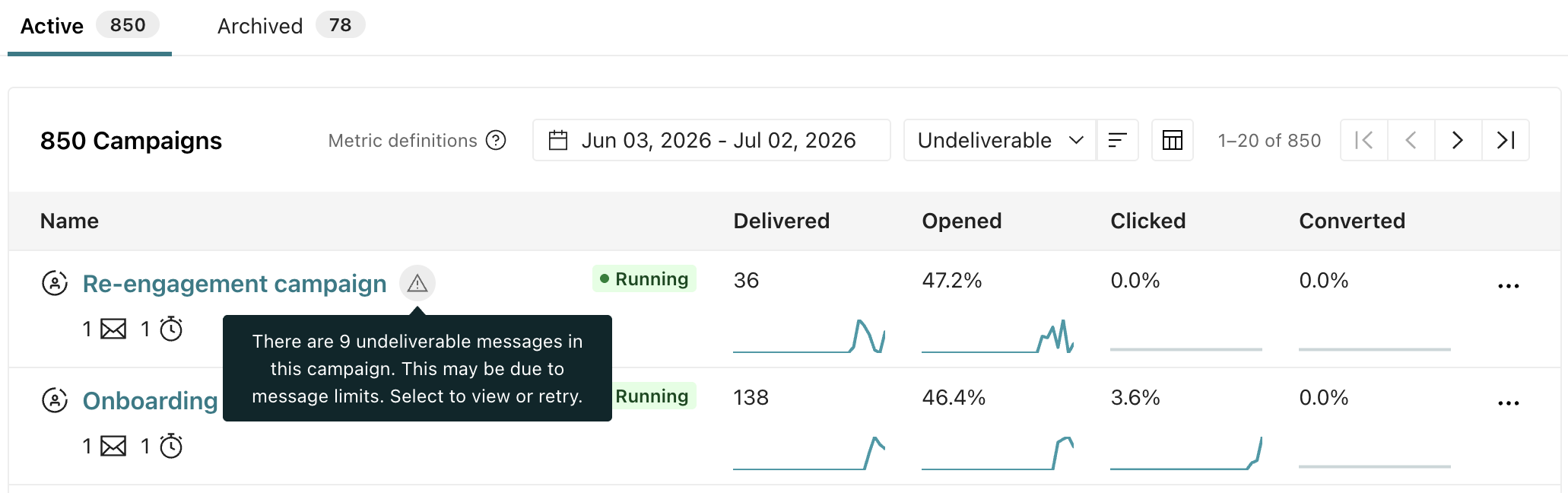
From Automations, Broadcasts, or Transactional messages, you can filter your workflows by the Undeliverable status.
A workflow with messages marked Undeliverable has a warning icon with a hover state recommending you look into your message limit settings:
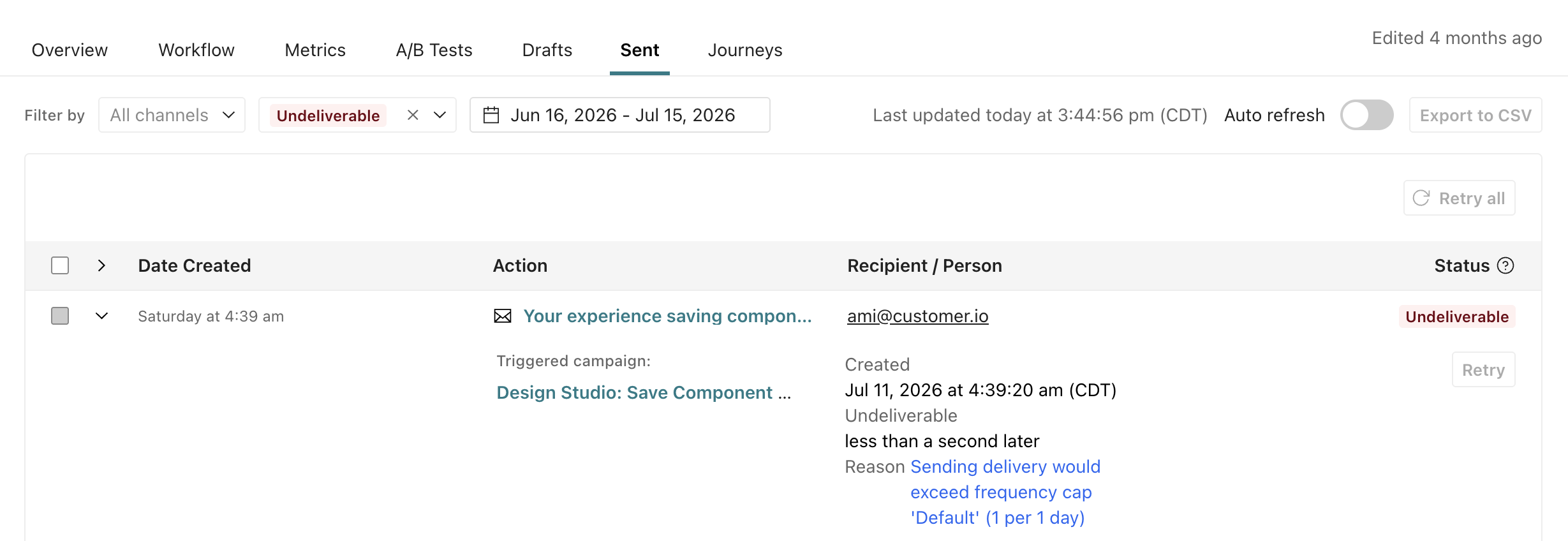
You can also filter for messages within a single workflow.
From Automations, One-time sends, or Transactional messages, open the workflow:
- Click the Sent tab.
- Filter for the Undeliverable status.
- Click to check the reason the message wasn’t sent.
From API-triggered broadcasts, open the workflow:
- Click the Broadcasts tab.
- Click a broadcast to review.
- Filter for the Undeliverable status.
- Click to check the reason the message wasn’t sent.
Manually retry messages after going over the limit
You can manually resend messages that go over a message limit, those that are marked as Undeliverable (messages that will not be retried automatically) or Attempted (messages that are scheduled for retry automatically).
Learn more about how to locate and filter for messages you want to retry.
To manually resend a message, go to your message:
- Click .
- Check the explanation to confirm it’s a type of message you want to retry.
- Click Retry.
Find automations and broadcasts with a message limit
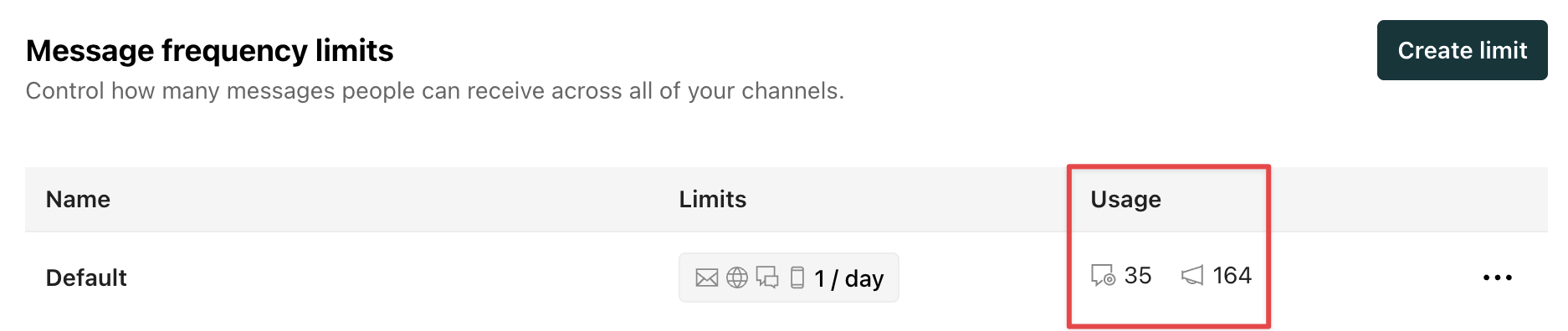
Automations, broadcasts, and transactional messages that observe a message limit appear under Usage in your Message limit settings, helping you understand the scope of your message limit.
Hover over the count to view a list of workflow names. Click a name to open the workflow and dig into your messages.