

Send failed or attempted messages
You can retry sending messages with a status of Attempted or Failed.
If a message has the Attempted status, your workspace did not succeed in sending it to the delivery provider due to a transient error or your message limit settings.
- If it was a transient error, your workspace automatically retries the message with exponential backoff—up to 11 times over a period of approximately 1 hour.
- If the message hit your message limit settings and you enabled a retry window, it is also marked as
Attempted. In this case, your workspace will follow your retry window time frame and attempt to send the message again until the window ends. Learn more in Message frequency limits.
On the other hand, a Failed status means that your workspace couldn’t send your message to the delivery provider. It never left Customer.io.
Fix a failed message
Follow the steps below to diagnose and fix the issue. Often, a liquid tag is the reason a message failed to send, but even if it’s not, these steps can help you move forward.
1. Locate the failed message.
You can go to the Message activity page then filter for the failed message. You can also find them in the Sent tab of your automation or broadcast. Click on the subject of the message. Here you’ll find the reason for the issue:
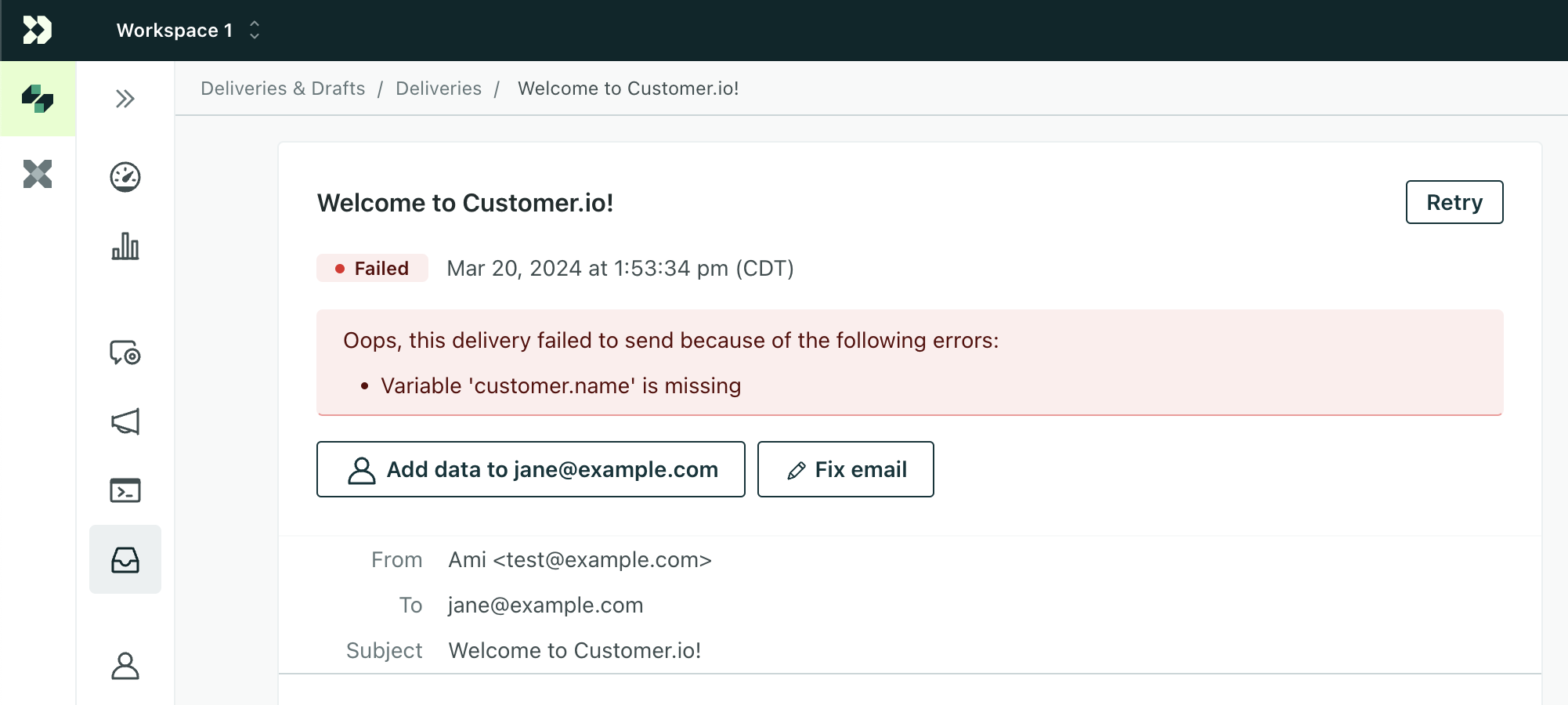
In this example, the customer’s name attribute was missing, so we couldn’t render and send your email to the customer.
Click Fix to find the issue and edit the message template.
2. Fix the problem.
Locate the error in your message template.
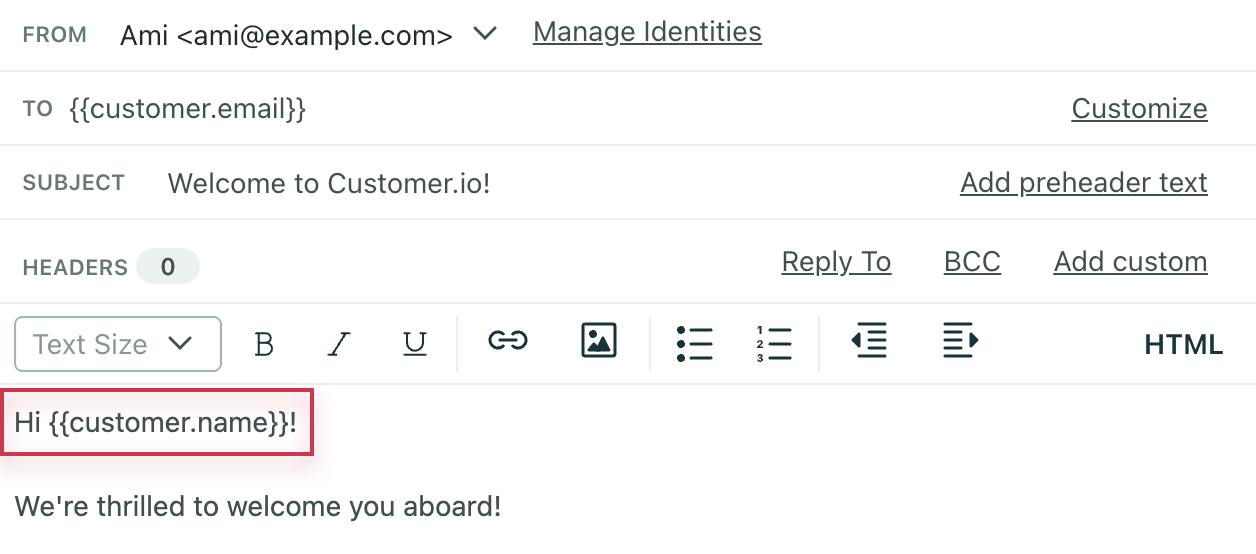
There are a couple of ways to fix this particular error.
Option 1: You can edit your Liquid code so that it includes a fallback option. A fallback tells Customer.io what to do when that attribute doesn’t exist, so your message will still be sent.
If your template uses our latest liquid, you could use this fallback:
{{ customer.name | default: "there" }}If your template uses legacy liquid, you could use this fallback:
{% if customer.name != blank %}

    {{ customer.name }}

{% else %}

    there

{% endif %}
This way, if the recipient doesn’t have the name attribute, the email will default to “Hey there!” instead of failing!
Option 2: Add the missing attribute and value to your recipient.
In case this particular person is missing that attribute and it should be there, you can add it to the person.
3. Send again!
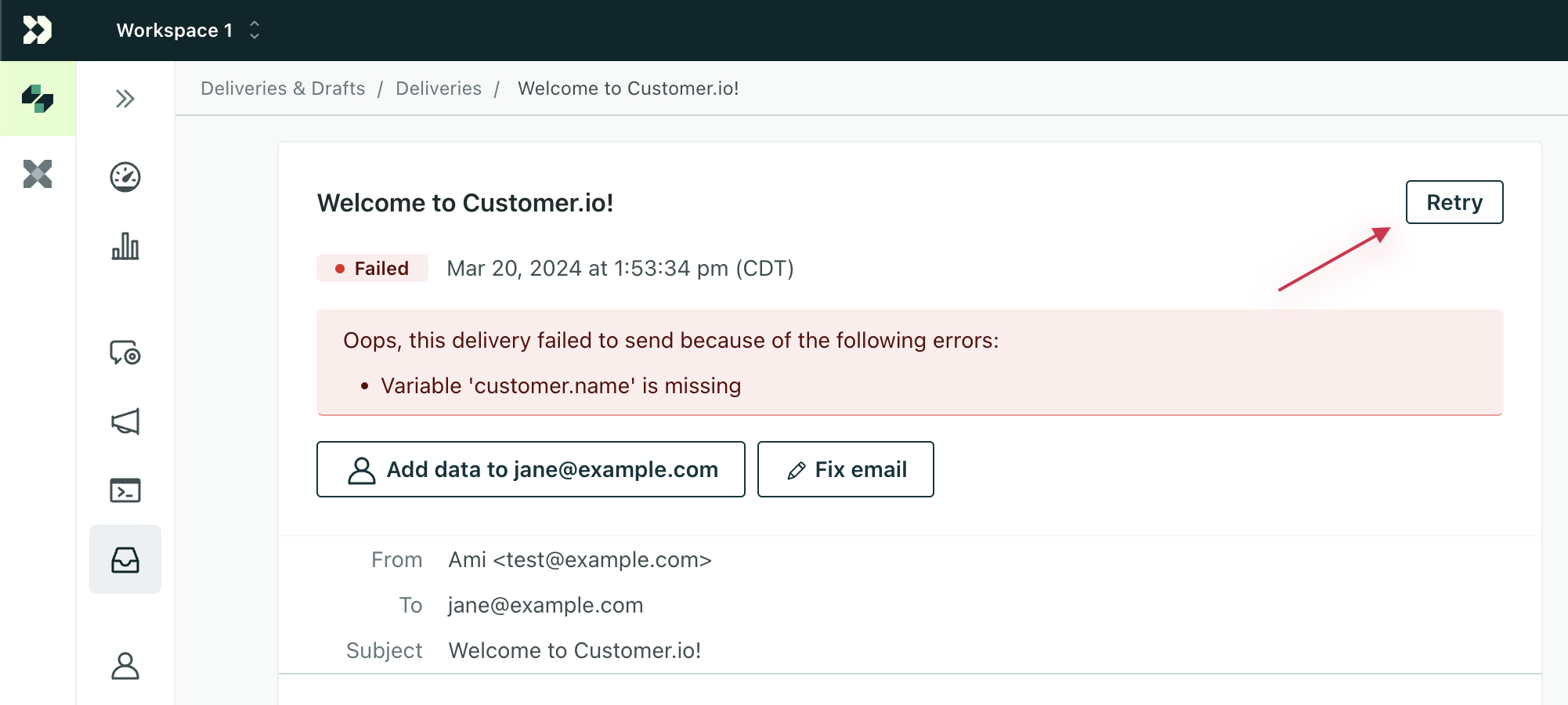
After you’ve fixed the error, go back to the delivery detail page of the failed message. Click Retry in the top right to send it again.
If you retry a webhook action, we send a new request.
Other errors
Different message types can fail with different error messages; it doesn’t always have to do with liquid. In the case of push notifications, for example, a device may fail because the device token on the profile is incorrect:
.png)
Or, for SMS, a phone number may be missing. No matter what, you can find this information on that message’s delivery page. Some errors may simply instruct you to contact us.
If you encounter more attempts or fails than expected, let us know and we’ll help you troubleshoot!