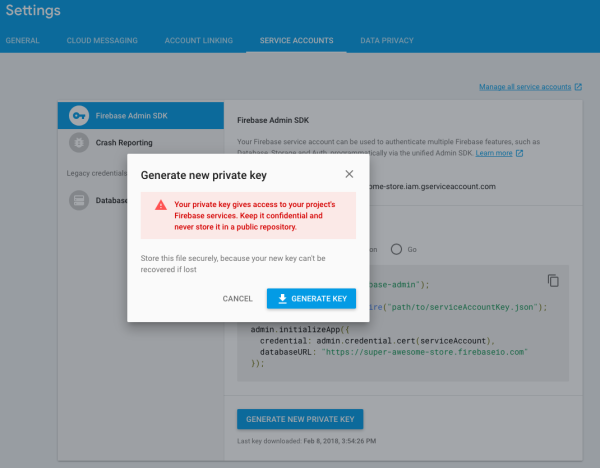
Push service certificates
Upload your push certificate
If you don’t already have your FCM .JSON file, you’ll need to get it before you can finish this process and send push notifications.
-
In Customer.io, go to > Workspace Settings > Push..
-
Click Add app and give your app a name—or click an existing app to add a platform to it.
-
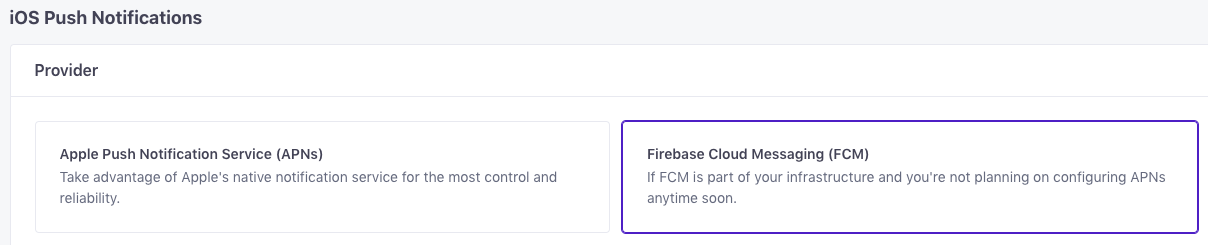
Select the iOS platform, and choose Firebase Cloud Messaging (FCM). An app’s iOS and Android platforms can share a single FCM credential.
Get your .JSON file for FCM
Before you can get a push certificate for Firebase Cloud Messaging, make sure that the FCM API is enabled for your project. You can check that here.
-
Log into the Firebase Console for your project.
-
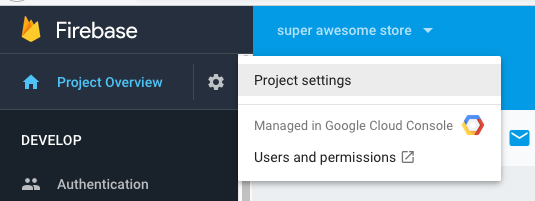
Click in the sidebar and go to Project settings.
-
Go to Service Accounts and click Generate New Private Key. Confirm your choice and download the credential file.