

Add or update profiles
Generally, you'll integrate your platforms with your Customer.io account to create and update profiles (your customers). However, sometimes you may need to add an individual profile or update an existing user manually for testing or other ad-hoc purposes.
Add a profile via the UI
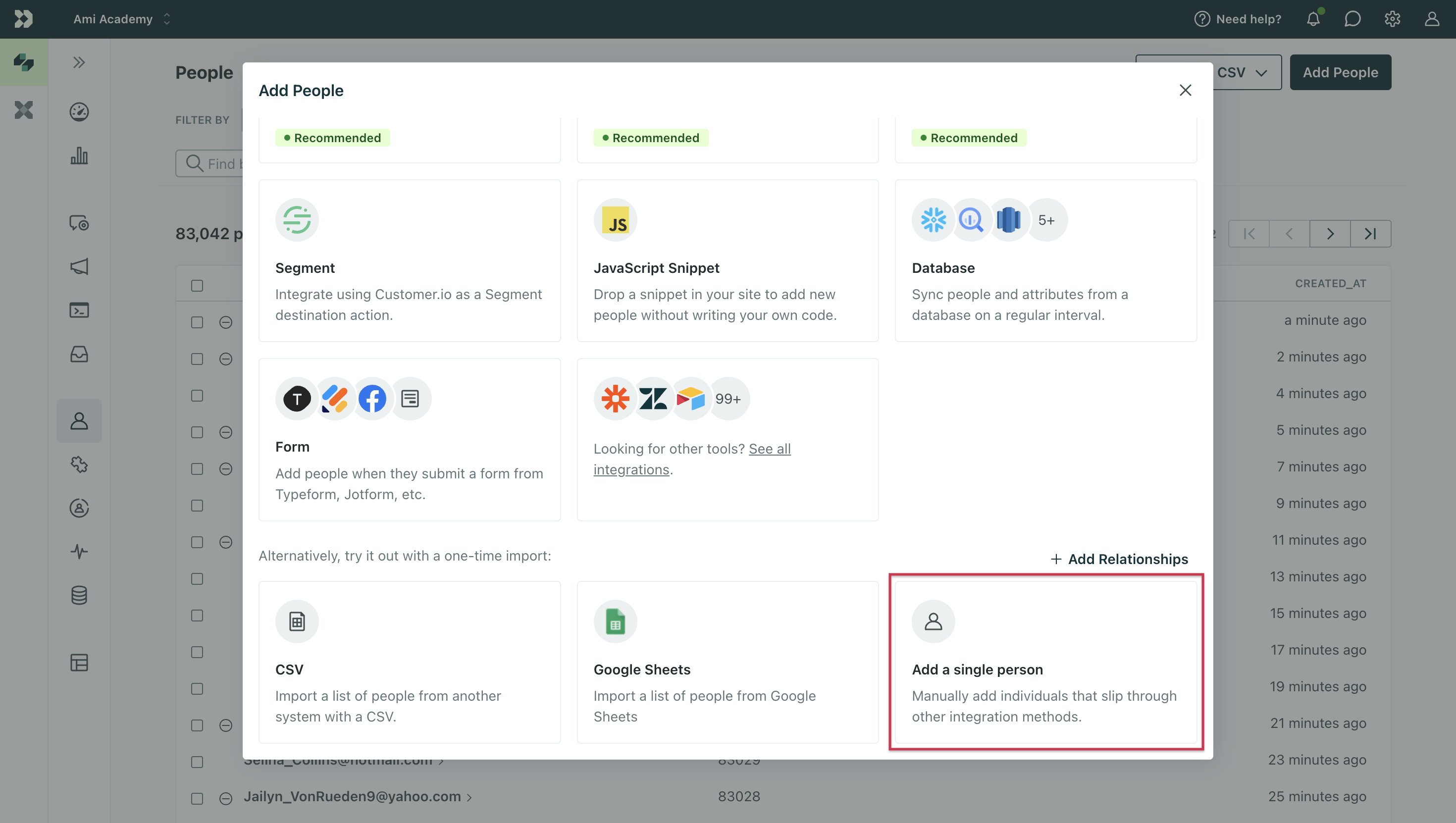
- Go to Profiles. Click Add Profiles. Scroll to the bottom of the modal and click Add a single profile.
- Under Identifiers, you’ll see
idand/oremailas options. The identifiers you see depend on the identifiers you’ve allowed in workspace settings. You only need to set one identifier to create a profile. Learn more in How to identify profiles..png)
- Add other data you want to store on this profile. Keep in mind, changing data can make profiles join or leave segments as well as trigger workflows.
- Click Save Changes.
You’ll see this profile on your Profiles page and can now add them to segments, send them messages, and more.
Update a profile via the UI
You can either search for the profile you want to update, or go directly to their profile by adding their id in the URL (eg. https://fly.customer.io/env/xxxxxx/profiles/5). If you search, you can click the user’s email to go to their profile:
.png)
- To delete or unsubscribe this profile, you can do so on the right-hand side of the screen. When you confirm the delete or unsubscribe, you’re finished editing.
.png)
- If you want to update their attributes or add new ones, go to Attributes and click Edit Attributes. Don’t forget to save when you’re done!
.png)
Adding or updating multiple profiles
You can add or update multiple profiles at once by importing a CSV file. For more information, check out: Uploading Profiles via CSV
Email address validation
When you add profiles by email addresses or update email addresses for profiles, we validate the new address against the RFC 5322 standard. In general that means that your addresses are formatted first last <first.last@domain.com> or simply name@domain.com.
The validation standard for email addresses is dense, but if an address is invalid, you might check for the following things:
- The address contains an
@character. - The address “name”, the portion of the address before the
@, contains letters, numbers, and does not have a leading or trailing periods. - The domain, the portion of the address after
@contains only letters, numbers, and does not have leading or trailing-characters.