LLM actions: Generate data & decisions with AI
BetaThis feature is new and we're actively working on it. UpdatedAn LLM action lets you prompt a Large Language Model (LLM) to generate and store data for use throughout a campaign. It’s how you use generative AI to enhance your workflows!
Not seeing this AI feature?
How it works
LLM actions let you prompt an AI model as a part of a campaign and store the output as attributes so you can use them later in the campaign. You can personalize messages, enrich data, and create conditions to help you reach the right audience.
campaign] --> B[LLM action
runs] B --> C[Response stored as
attribute] C --> D[Use attribute in
messages and conditions]
LLM actions automatically follow your account-level security settings for AI: your Gemini safety settings (if the action uses one of Google’s models) and your compliance prompt.
By default, LLM actions store data as journey attributesAn attribute stored on a journey during a campaign. Journey attributes expire when people exit your campaign., which expire when people exit your campaign. If you want to use the LLM’s response outside of the campaign, you can change them to customer attributesData stored on your customers’ profiles, like a person’s name. You can include this data in messages or conditions across your workflows. instead.
What data can an LLM action process?
| Data | Can an LLM action process it? | What you need to do |
|---|---|---|
| Text in the prompt | Automatically processed | |
| Your account level AI settings: Compliance prompt and Gemini safety settings (when you use a Google model) | Automatically processed | |
| Your workspace’s business context | Reference it with liquid in the prompt | |
| Customer attributes | Reference them with liquid in the prompt | |
| Journey attributes set earlier in the campaign | Reference them with liquid in the prompt | |
| Data that triggered the campaign | Reference them with liquid in the prompt | |
| Events unrelated to the campaign trigger | It can only process events that triggered the campaign | |
| Object or relationships unrelated to the campaign trigger | It can only process objects or relationships that triggered the campaign | |
| Websites, articles, or other online content | N/A, the LLM can’t crawl any sites | |
| Media files like images and videos |
Learn more about adding and previewing liquid in your prompt below.
Billing: LLM actions use AI credits
Unlike other workflow blocks, LLM actions have their own currency: AI credits. Each time an LLM action calls a model, it uses AI credits. This includes when a person reaches the action in a campaign and when you use Preview response to test it. The number of credits consumed depends on the model you select, the size of the prompt, and the amount of context sent with the request. See AI credits for details on pricing and what happens when credits run out.
Ways to use LLM actions
You can use LLM actions to generate data for use across your workflows. Here are a few use cases you could consider:
- Personalized product recommendations: Pass purchase history and browsing data to suggest relevant products for each person.
- Follow-up on purchase based on customer sentiment: Create message content based on a customer’s experience from purchase to delivery. If sentiment is positive, request review. If sentiment is negative, send a follow-up asking what you could do better.
- Classify accounts: Classify customers based on their companies’ data.
Update data from the response of an LLM action
You can use LLM actions to analyze a customer’s behavior and generate insights that you store on attributes for use later on in your campaign.
To set or update data based on an LLM’s insights, you would follow these steps:
- Prompt the LLM to analyze specific customer attributes, trigger data, or data provided in the prompt.
- Store the output as a journey or customer attribute, depending on if you want to use the data outside of the campaign.
- Create subsequent conditions that target the updated attribute or reference the data in messages using liquid.
Send a message using content from an LLM action
Don’t communicate sensitive information or updates with LLM actions
If you’re looking to automate personalized messaging at scale, you can use LLM actions to create email content unique to each person moving through your workflow. However, you’ll be sending content that hasn’t been reviewed by your team.
Remember that LLMs can make mistakes, like not quite matching your tone or incorrectly categorizing your data. Don’t communicate sensitive matters with unreviewed, LLM-generated content. Consider using our Agent to generate a template instead.
To send a message using content from an LLM action, you would follow these steps:
- Prompt the LLM action to create copy based on your customer’s data and your content guidelines.
- Store the output as a journey attribute, like
body. - Reference the journey attribute in a subsequent message block.
- If the attribute value doesn’t contain liquid syntax, you can reference it as:
{{journey.body}}. - If the LLM-generated content contains liquid syntax—like
{{customer.first_name}}—use{% render_liquid journey.body %}so the liquid within the value renders dynamically. If you use{{journey.body}}instead, any liquid in the value displays as static text.
- If the attribute value doesn’t contain liquid syntax, you can reference it as:
Set up an LLM action
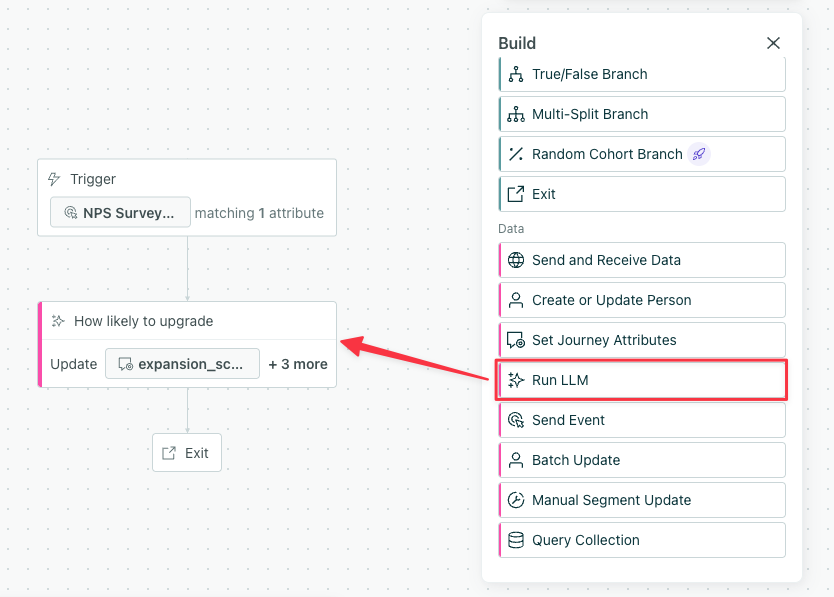
LLM actions are available for campaigns. In the workflow builder, scroll down to Data, then drag Run LLM onto your campaign’s canvas.
Click the block to open its configuration menu, and select Edit Content to get started.
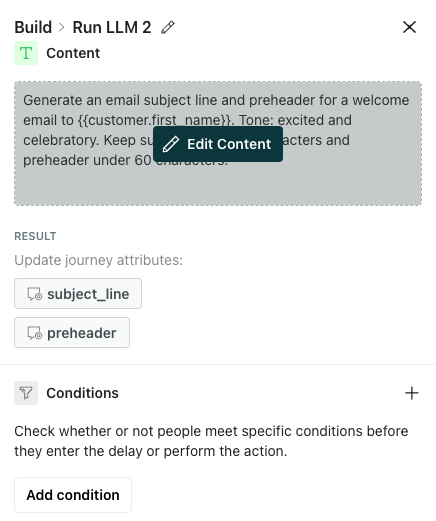
(Optional) If you only want certain people who trigger the campaign to run the LLM action, you can add Conditions here to filter your audience.
Consider the type of task it should perform then choose your Model. Learn more about model types, credit usage, and costs below.
Add a Prompt to instruct the LLM on what to do and how. The more specific you are, the better the results will be. Learn more about creating prompts below or check out our templates.
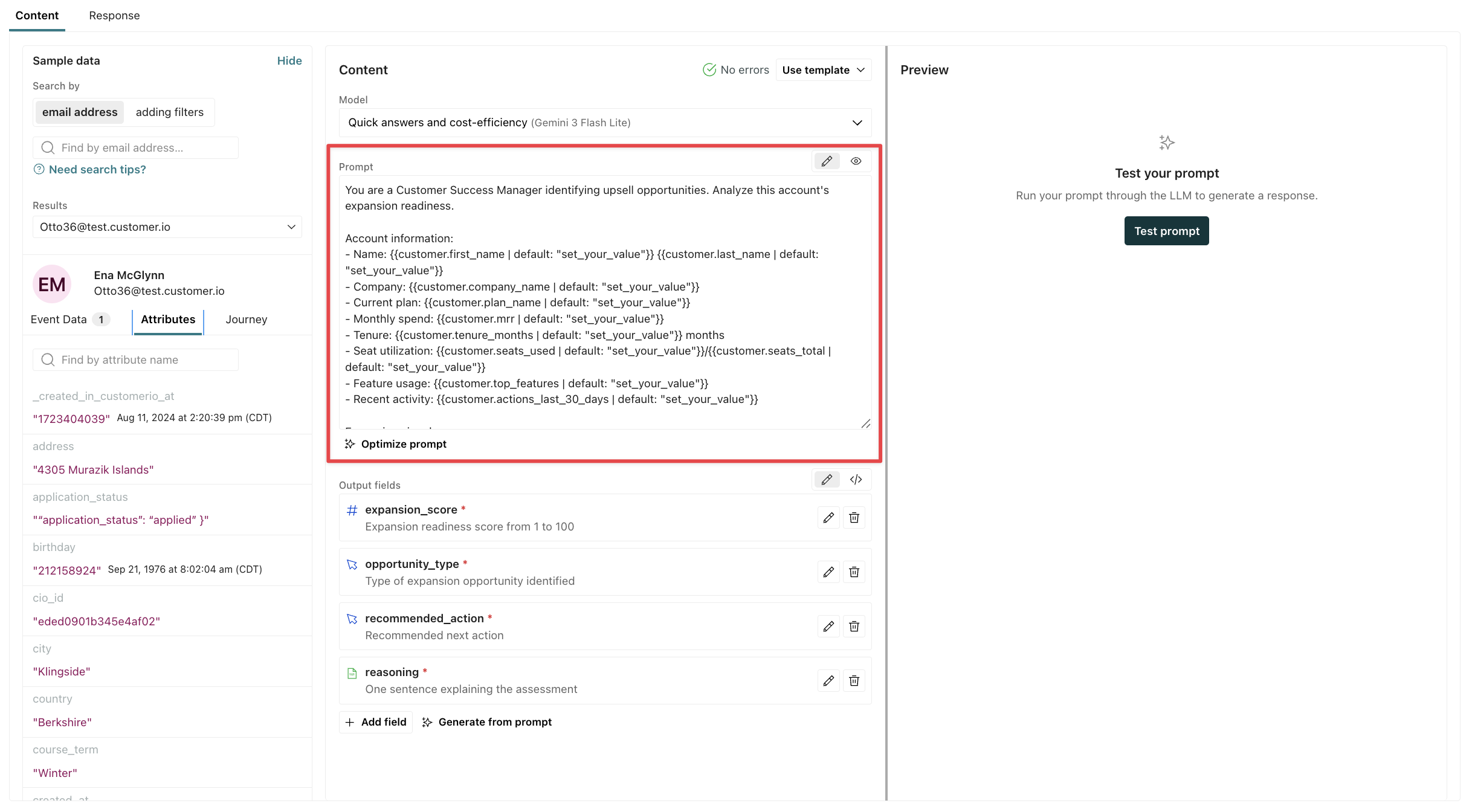
Click to preview liquid in your prompt with sample data. This shows the data the LLM will process. Learn more about the data you can reference in LLM prompts below.
Generate Output Fields—the journey attributesAn attribute stored on a journey during a campaign. Journey attributes expire when people exit your campaign. you want to create to store data from the LLM response. Learn more about setting and storing responses below.
Click the Response tab to set fallback values for each attribute created by your output fields.
If you want this data available outside the campaign, this is also where you can change a journey attribute to a customer attribute.
Click Test prompt to see how the LLM would interpret your prompt. Note, this counts towards your AI credit usage. Learn more about billing.
Model: Choose the right model for the task
When you configure an LLM action, you choose which model processes your data. Different models have different strengths—and different costs.
- Reasoning models produce higher-quality results for complex tasks but use more credits per run.
- Quick models are faster and more cost-efficient, using fewer credits per run.
Consider the complexity of your task when choosing a model. If you’re doing simple categorization or translation, a quick model may work well. For nuanced analysis or creative content, a reasoning model may produce better results.
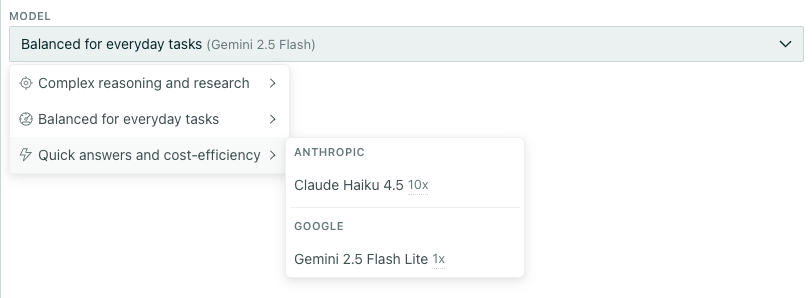
When you choose a model, you’ll see a multiplier beside the model name. This represents the credit burn rate compared to the base model. In this example, the Anthropic model uses 10x more than our base model—Google’s Gemini 2.5 Flash Lite. Learn more about credit burn rates.
Prompt: Tell the LLM what to do and how
When you prompt an LLM action, you should include the following so the LLM has full context on your use case:
- Define your goal. If you don’t know exactly what you want, the LLM won’t either.
- Be direct, concise, and specific. Provide any context that’s necessary to achieve your goal, like how and why to evaluate data.
- Include any attributes you want the LLM to use in its response. See Personalize your prompt with liquid for more info.
- Define the structure of your output.
You can learn more about best practices for prompts from the LLM providers.
- If you choose a Google model to process your prompt, learn more in the Google’s Gemini documentation.
- If you choose an Anthropic model to process your prompt, learn more in the Anthropic’s Claude documentation.
Prompt example
Below is an example of how to improve a prompt. Bottom line, you should test your prompt to gauge whether the output is what you want. But if you’re looking to improve your output quality and make it more consistent, here’s an example that highlights best practices.
| Prompt | Quality | Why |
|---|---|---|
| Account upsell: Compare customer seat utilization to their current plan. | Low | The goal is not clear; there’s only an idea around upselling. The data to use is barely defined and the desired output is absent. |
Analyze this account’s expansion readiness. Compare their seat utilization {{customer.seats_used}} to their current plan {{customer.plan_name}}. An account may expand if seat utilization is greater than 80% and they’re not on the highest plan. | Medium | The goal is stated. Some data is identified along with some criteria for evaluation. But the desired output is still absent. |
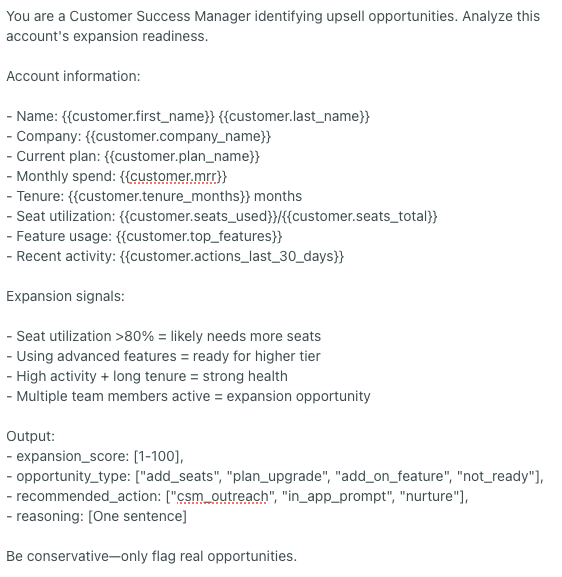 | High | The goal is defined and criteria for being expansion ready is defined. The prompt includes the data to use and desired output format. |
Use a template prompt
Click Use template to create a prompt based on one of our templates. Each prompt demonstrates key best practices: defining a persona, setting clear guidelines, and specifying the output format.
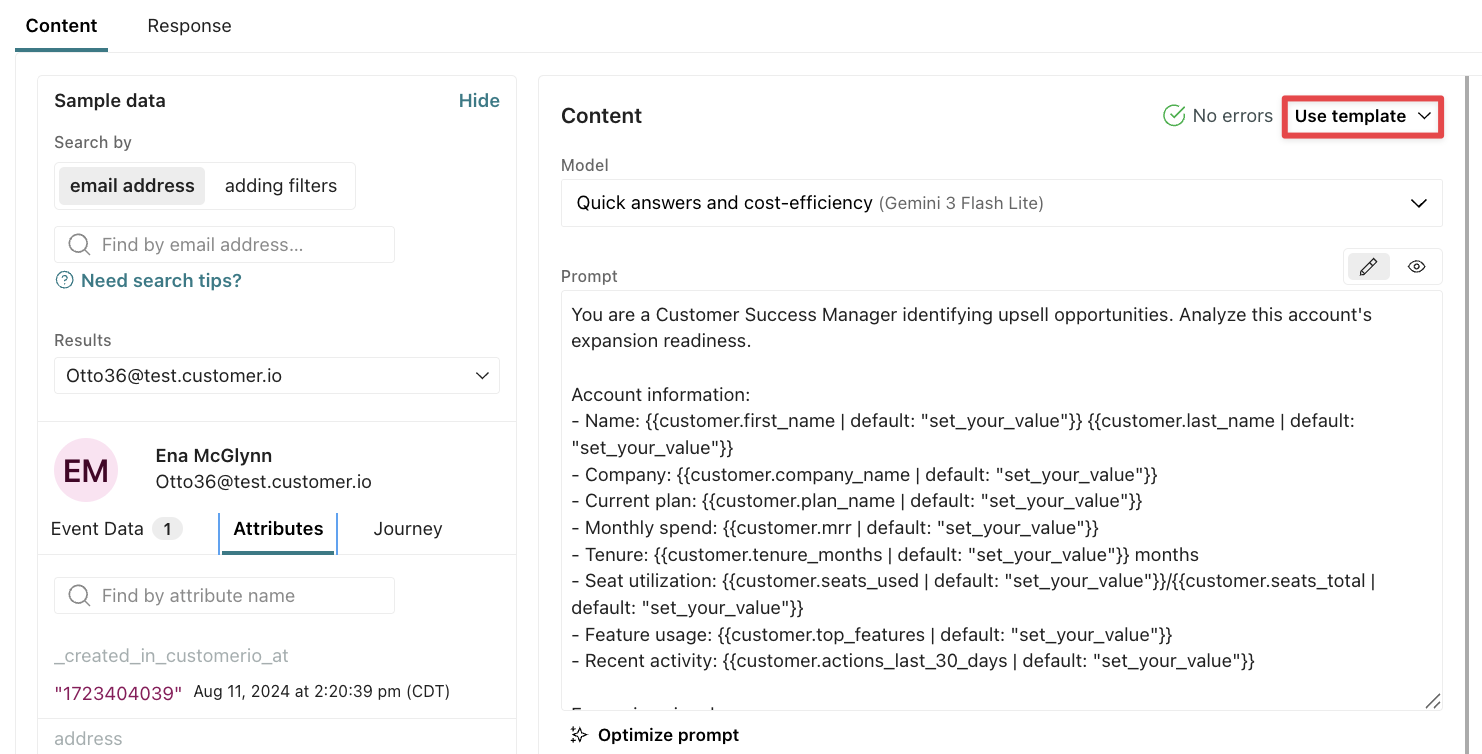
You should adapt them to your business, data, and tone for best results with your audience.
Review your AI settings
In your account and workspace settings, you can add context about your company and audience to improve how AI generates responses across your workflows. These settings influence how the agent communicates with you and how AI features like segment generation and email content analysis work.
Go to Account settings > AI to manage compliance and safety settings across all your workspaces. These settings automatically apply to LLM actions.
- Gemini Safety Settings—Configure safety thresholds for content created by Customer.io’s tools; these only apply to LLM actions when you use a Gemini model.
- Compliance Prompt—Manage regulatory and policy guidelines.
Go to Workspace settings > Business context to add context about your business, like links and tone preferences, to improve content generated by Customer.io’s AI tools. These settings do not automatically apply to LLM actions, but you can add in this context with liquid.
Personalize your prompt with liquid
You can include specific data in your prompt so the LLM creates an output personalized to your recipient.
| Data type | Liquid keys | Can an LLM action process it? |
|---|---|---|
| Your workspace’s business context | {{ai_context.<attribute_name>}} | Yes |
| Customer attributes | {{customer.<attribute_name>}} | Yes |
| Journey attributes | {{journey.<attribute_name>}} | Yes |
| Campaign trigger data | {{trigger.<attribute_name>}}, {{trigger.<object_type_name>.<attribute_name>}}, {{trigger.relationship.<attribute_name>}}, and {{event.<attribute_name>}} | Yes |
| Objects & relationships | Any keys that start with {{objects... | No |
| Events | None | No |
Any trigger data available through liquid is accessible to LLM actions; the LLM action can use events, objects, webhooks, etc that trigger campaigns to generate responses. However, LLM actions cannot access event and object relationships that did not trigger campaigns.
For instance, this means you could ask an LLM action to generate a message based on event data from the trigger, but you shouldn’t prompt the LLM action to analyze all event data for a person and save its findings to the customer’s profile. That wouldn’t be inclusive of the breadth of a person’s activity across your platform.
Add your business context with liquid
If you want LLM actions to take into account your business context, you have to explicitly add it to your prompt with liquid. Keep in mind, this takes up extra tokens, so make sure you test it and review the cost implications.
You’ll use the liquid object ai_context with any of the attributes below. For instance, if the output should follow your audience guidelines, you should add {{ai_context.audience}} to the prompt. Click and you’ll see the data that the LLM would process, in this case, the Audience prompt from workspace settings.
| Prompt for Run LLM action | Preview |
|---|---|
Generate a message following our audience guidelines: {{ai_context.audience}}. | Generate a message following our audience guidelines: marketing, product, engineering, and sales teams looking to improve customer engagement, activate users, drive cross-sells/upsells, enhance onboarding, and improve retention through personalized, data-driven communication across multiple channels. |
Some settings, like tone, have nested data that an LLM more easily parses if you explain what each field means. While you can reference {{ai_context.tone}}, you’ll get better results if you create guidelines for the different tones you use with your audience:
Tone guidelines:
- Formality: {{ ai_context.tone.formality.description }}
- Humor: {{ ai_context.tone.humor.description }}
- Respect: {{ ai_context.tone.respect.description }}
- Energy: {{ ai_context.tone.energy.description }}
If you include the entire object {{ ai_context }} in your prompt, make sure you test it and check the cost implications. Compare that against the cost implications for specifying only the attributes you need. The more clear, concise and directed you can be in your prompt, the more efficiently an LLM will process your prompt. You may find you don’t need all of your business context to get the results you want.
Liquid keys: Basic info & Key links
The table below includes data available through the ai_context object that you’ll find under Basic info and Key links in your Business context.
| Liquid key | Value type | Description |
|---|---|---|
| ai_context.audience | string | Target audience |
| ai_context.version | int | Context version |
| ai_context.workspace_id | int | Workspace ID |
| ai_context.account_id | int | Account ID |
| ai_context.domain | string | Sending domain |
| ai_context.created_at | timestamp | When context was created |
| ai_context.updated_at | timestamp | When context was last updated |
| ai_context.name | string | Company name |
| ai_context.long_description | string | Long description of the business |
| ai_context.industry | string | Industry |
| ai_context.website_url | string | Website URL |
| ai_context.privacy_policy_url | string | Privacy policy URL |
| ai_context.terms_of_service_url | string | Terms of service URL |
| ai_context.pricing_url | string | Pricing page URL |
| ai_context.download_url | string | Download page URL |
Liquid keys: Tone & Voice
The table below includes data available through the ai_context object that you’ll find under Tone & Voice in your Business context.
| Liquid key | Value type | Description |
|---|---|---|
| ai_context.tone.formality.description | string | System-generated description |
| ai_context.tone.humor.description | string | System-generated description |
| ai_context.tone.respect.description | string | System-generated description |
| ai_context.tone.energy.description | string | System-generated description |
| ai_context.tone_examples | string[] | Example text snippets showing brand tone |
You can control the descriptions by changing the sliders under Tone & Voice in Business context.
Liquid keys: Platform availability
The table below includes data available through the ai_context object that you’ll find under Platform availability in your Business context.
| Liquid key | Value type | Description |
|---|---|---|
| ai_context.platforms.ios.available | bool | iOS app available |
| ai_context.platforms.ios.link | string | iOS app link |
| ai_context.platforms.android.available | bool | Android app available |
| ai_context.platforms.android.link | string | Android app link |
| ai_context.platforms.mac.available | bool | Mac app available |
| ai_context.platforms.mac.link | string | Mac app link |
| ai_context.platforms.windows.available | bool | Windows app available |
| ai_context.platforms.windows.link | string | Windows app link |
| ai_context.platforms.web.available | bool | Web app available |
| ai_context.platforms.web.link | string | Web app link |
| ai_context.platforms.browserExtension.available | bool | Browser extension available |
| ai_context.platforms.browserExtension.link | string | Browser extension link |
| ai_context.platforms.api.available | bool | API available |
| ai_context.platforms.api.link | string | API link |
Preview liquid in your prompt
If there’s an error with the liquid, like a customer doesn’t have the variable set on their profile, then the LLM action will fail to run. The person will move onto the next action in the workflow. To prevent an LLM action from failing due to liquid errors, set fallbacks in the prompt.
If your prompt includes liquid, make sure you click to preview your prompt with sample data.
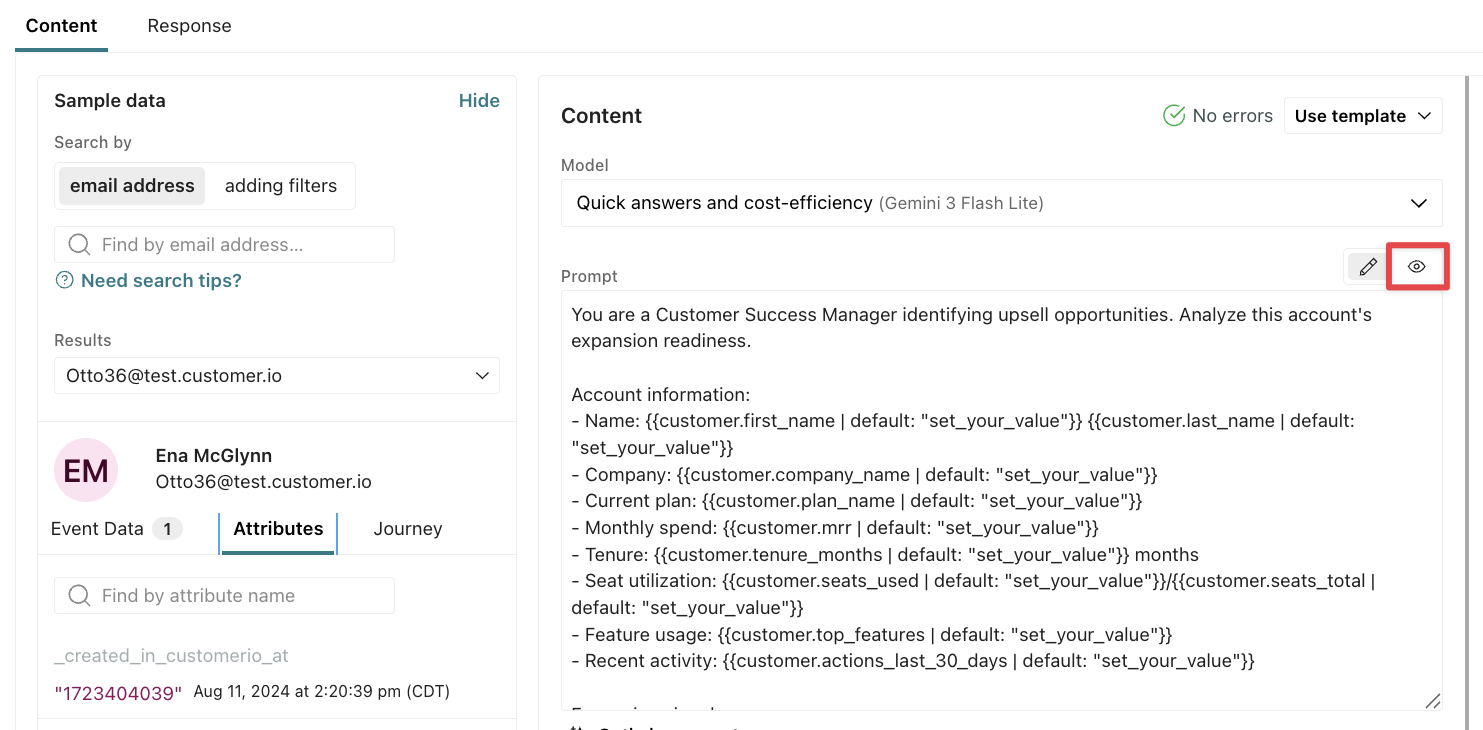
Check how the prompt renders with customers that do and don’t have the liquid variables to confirm your fallback values render as expected.
Previewing a prompt only renders the liquid; it does not send the prompt through an LLM, so this preview does not spend your AI credits. Learn more about testing your prompt and billing implications.
Output: Store the response as attributes
After you add your prompt, you’ll generate the output—how the LLM will store its response. By default, the LLM action stores data as journey attributesAn attribute stored on a journey during a campaign. Journey attributes expire when people exit your campaign., which you can use throughout a person’s journey in the campaign, but not once they exit. If you want to use this data outside the campaign, change them to customer attributes in the Response tab.
You can use these attributes in a variety of ways in subsequent actions:
- Personalize messages with liquid
- Create branches in your workflow based on the attribute output from the model
- Build conditions to filter people out of certain actions or messages
- Use them as inputs for other LLM actions downstream
Create outputs manually
- On the Content tab, click Add field under Output Fields.
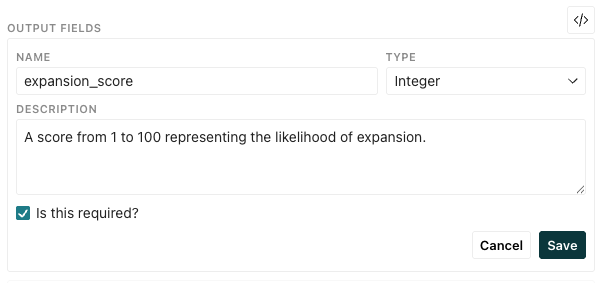
- Add a Name. This becomes the key used to reference the output through liquid syntax.
- Select a Type of value you want to store.
- Enter a Description so you know how to use the output. This is especially helpful if you’re setting customer attributes. This description will appear in your Data Index and help you audit your data in the future.
- Select whether the LLM action is required to generate the output.
- Click Save.
By default, output fields are journey attributes, which expire once a person exits the campaign. If you want to use these attributes outside the campaign, you can change them to customer attributes in the Response tab.
Generate outputs from your prompt
- On the Content tab, click Generate from prompt under Output Fields.
- Click Replace to view the latest output fields.
- Review the output: click to view the returned name, value type, and descriptions. Modify them as you see fit.
- Name: The key used to reference the output through liquid syntax.
- Type: The type of value you want to store.
- Description: A description of the output. This is especially helpful if you’re setting customer attributes. This description will appear in your Data Index and help you audit your data in the future.
- Save your changes.
You can also add fields manually alongside generated outputs or delete items you don’t want to store.
By default, output fields are journey attributes, which expire once a person exits the campaign. If you want to use these attributes outside the campaign, you can change them to customer attributes in the Response tab.
Types of values
Each output field has a type of value that defines what the LLM action should store in your attributes.
| Type | Description | Example |
|---|---|---|
| Text | A text string value | “Mark your calendars: the summer solstice is coming!” |
| Number | A number that can include decimals | 3.14 |
| Integer | A whole number (no decimals) | 42 |
| Boolean | A true/false value | true |
| Date | A date string (ISO 8601 format) | “2026-03-31” |
| Date and Time | A timestamp string (ISO 8601 format) | “2026-03-31T14:30:00Z” |
| Time | A time string | “14:30:00” |
| List | An array of generated text values | ["Subject line 1", "Subject line 2", "Subject line 3"] |
| Single Select | One value picked from predefined options | “positive” (from options like ["positive", "negative", "neutral"]) |
| Multi Select | Multiple values picked from predefined options | ["positive", "neutral"] (from options like ["positive", "negative", "neutral"]) |
Delete output fields
To remove output fields stored from an LLM action response, go to the Content tab and click beside the field you want to delete. The Response tab will update to reflect the changes.
Change from journey to customer attributes
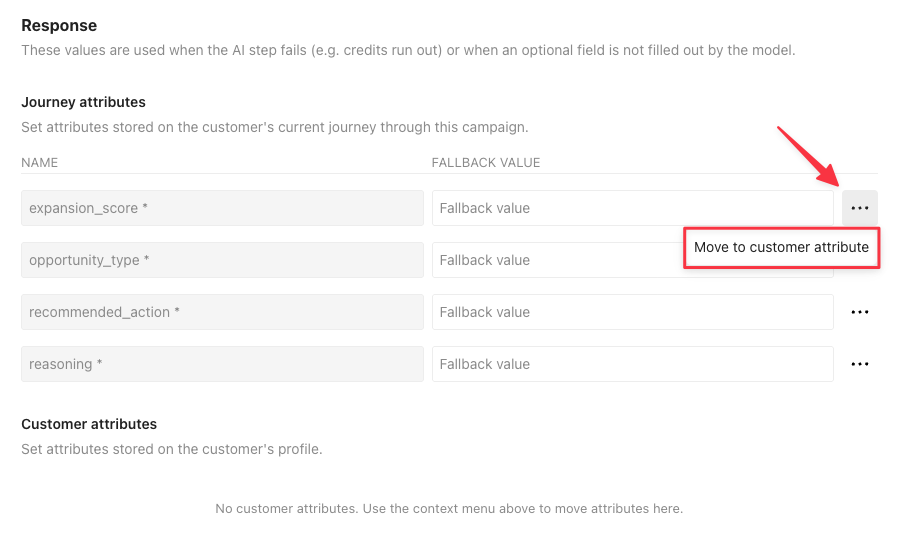
By default, the output fields generated in the Content tab are journey attributes, but you can change that in the Response tab. If you want to take action on the data outside the campaign, then you’ll want to change them to customer attributes.
Click beside an attribute to switch types.
You can’t set or modify events, objects, or relationships with LLM actions. However, you can use a Send event action to store events based on customer or journey attributes set by an LLM action.
Respond to failed LLM actions
An LLM action can fail for reasons including:
- Your account runs out of AI credits
- The model returns an error
- The action times out
If an LLM action fails, your campaign will retry the action twice. If the action fails after three attempts, the journey will continue without the attribute updates, which could impact subsequent workflow actions that rely on them.
You can set fallback values so any condition or content that references the attributes continues to be evaluated in a way that’s best for your customers. By default, output attributes do not have fallback values, but you can set them in the Response tab.
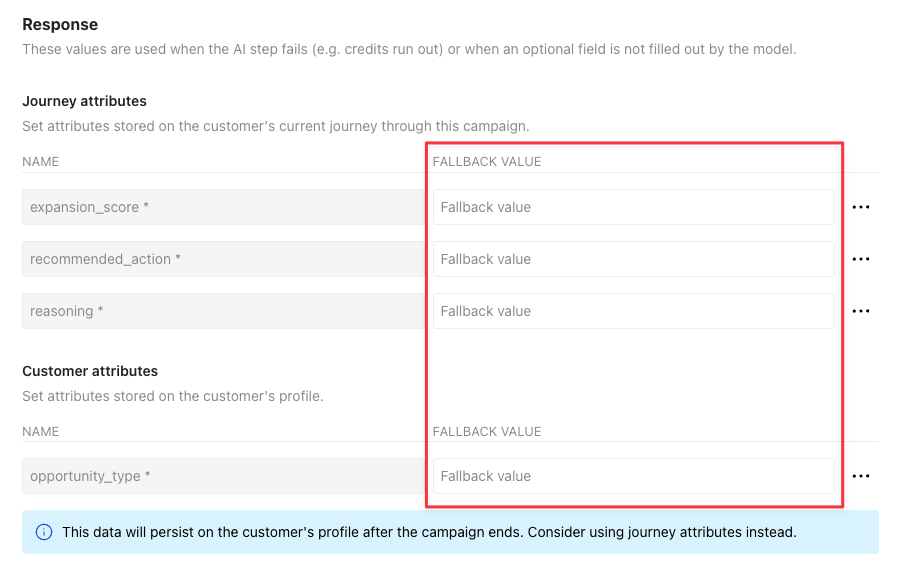
Consider what’s best for your use case. How should people move through your campaign if the Run LLM action fails?
- If the LLM action generates email copy, it might make sense to store fallback content so your customers still get the core of your message in a subsequent action, just with less personalization. Otherwise, the email would fail to send altogether, and they’d move onto the next action.
- If the LLM action is meant to determine whether your customer is likely to upgrade their plan, you might leave the fallback blank so you know it didn’t update and send them down a different path in the workflow when the attribute does not exist.
If a customer or journey attribute is already set and the LLM action should update them, the attributes will only update if the LLM action succeeds or has fallback values. If the LLM action fails and has no fallbacks set, the attributes remain unchanged; they won’t be cleared or unset.
Test your prompt
After you preview your prompt and confirm there are no liquid errors, you should test your prompt to see how the selected LLM will interpret your prompt and how many AI credits it will use.
Testing your prompt costs AI credits
Select a person from the Sample Data panel that would cause the LLM action to run.
Click Test prompt. For smaller screens, click the Preview tab first. Remember, each run uses AI credits.
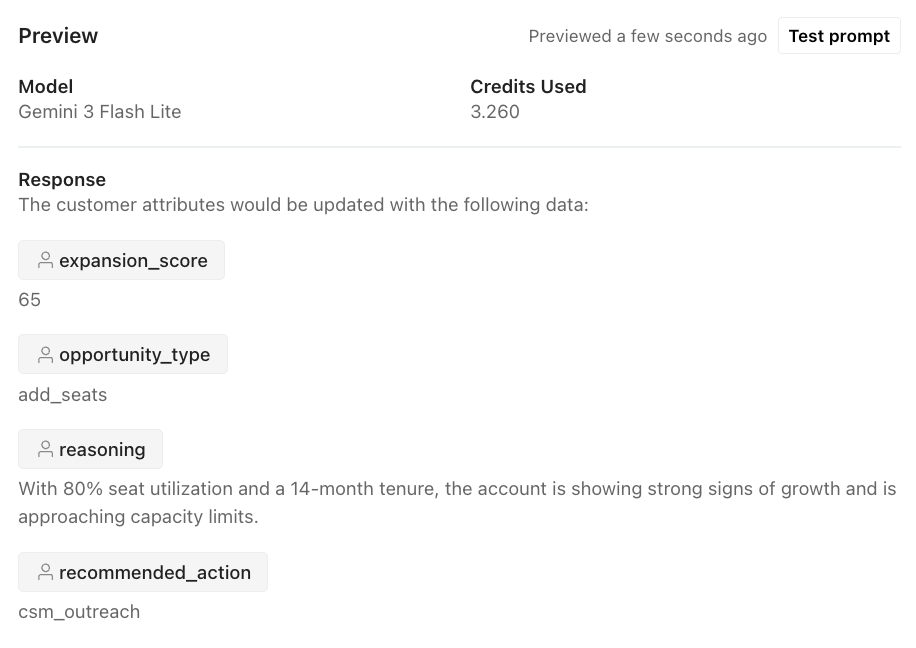
Review the model’s output to verify it meets your expectations.
Check your credit usage; does your account have enough credits to run the action considering the anticipated size of your audience?
If a value is cutoff, hover over it to view the full output.
Adjust your prompt or model selection if needed and preview the response again.
Test LLM actions with multiple people