Goals
UpdatedGoals are measurable business outcomes that help you strategize around your messaging and data. Unlike campaign-specific conversion goals, Goals give you a single view of performance across your campaigns and broadcasts.
How it works
From the Goals page, you can define a business outcome—like starting a paid plan or completing onboarding—and attribute campaignsCampaigns are automated workflows you set up to send people messages and perform other actions when they meet your criteria. and broadcastsA message sent to a group of people at the same time. Unlike campaigns, where individuals can enter campaigns and receive messages on their own time, you’ll trigger a broadcast for everybody meeting your criteria at once. When you send a broadcast, you can personalize broadcasted messages for individual members of your audience; everybody doesn’t have to get exactly the same message. to achieving the goal. Instead of measuring success campaign-by-campaign, Goals give you a single view of what’s driving an outcome across your messaging.
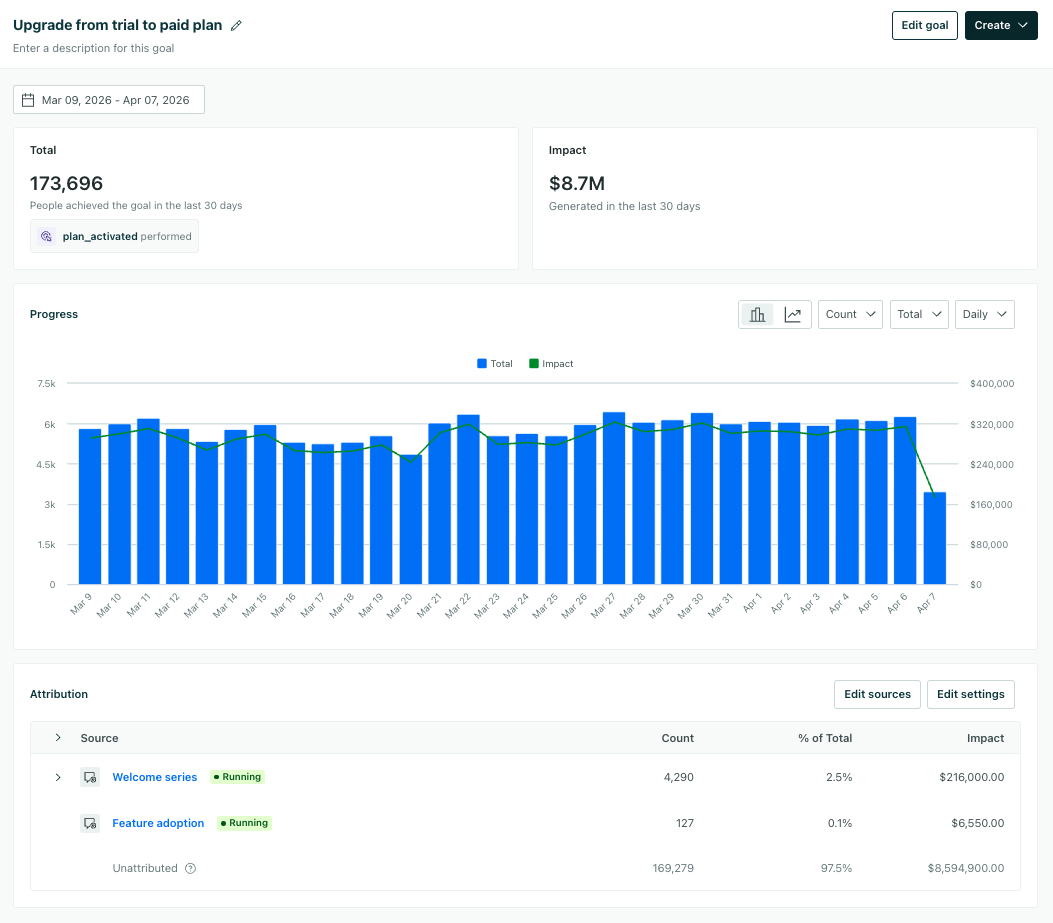
Goals have a few key components:
- A person achieves a goal. The Total metric represents unique people—those who’ve achieved your goal at least once. We don’t aggregate every time a person achieves your goal.
- Goal achievement is attributed to a message sent from a source—a campaign or broadcast related to your business outcome. If a goal is achieved separate from your sources, it’s considered unattributed. Source attribution is tied to the last message a person received from one of your sources.
- You can tie goal achievement to revenue impact by assigning a monetary value alongside your goal criteria.
We track goal achievement across message channels so you can see exactly what content is powering your outcomes.
Goals are unique to each workspace. To track the same goal across multiple workspaces, you must create a goal in each one.
Goals vs campaign conversion criteria
Historically, workspaces have come with workflow-specific goals, which let you track conversions within a campaign, newsletter, etc, but not across them. Goals enable you to define an outcome for your business and look across your marketing communications to see your progress.
Use cases
Goals work well for tracking outcomes across your messaging:
- Trial to paid conversion: define a
plan_activatedevent as your goal and connect your onboarding campaigns to see which messages drive upgrades. - Activation and onboarding: track when new users complete key setup steps and attribute it to your welcome series.
- Reactivation: measure whether win-back campaigns bring dormant users back to your product.
- Expansion and upsell: track plan upgrades or add-on purchases driven by in-app messages or email campaigns.
Set up a goal
To get started, go to Goals.
- Click Create Goal.
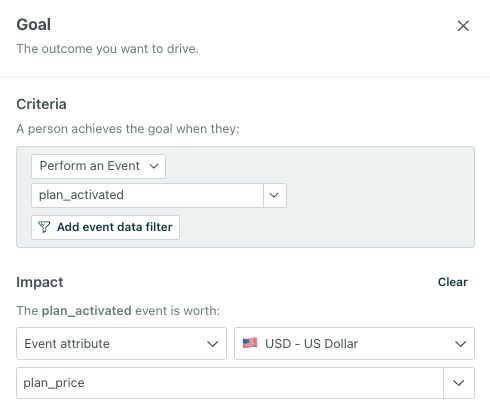
- Add the Criteria for meeting your goal. You can set conditions for events, attributes, segments, or message data.
 Note, you can’t define goal criteria by custom objectsAn object is a non-person entity that you can associate with one or more people—like a company, account, or online course., but you could create a segment that references the object conditions you want to evaluate.
 - (Optional) Set the monetary Impact value.
- Each goal supports a single currency. There’s no automatic multi-currency conversion—if you track revenue in multiple currencies, create separate goals for each.
- If people achieve the goal when they perform an event, you can choose to set the impact based on an event attribute or a static value. For other goal criteria, you can only set a static value.
- Click Save. At first, you’ll see a revenue report. To refine how your goal is tracked, go to Attribution.
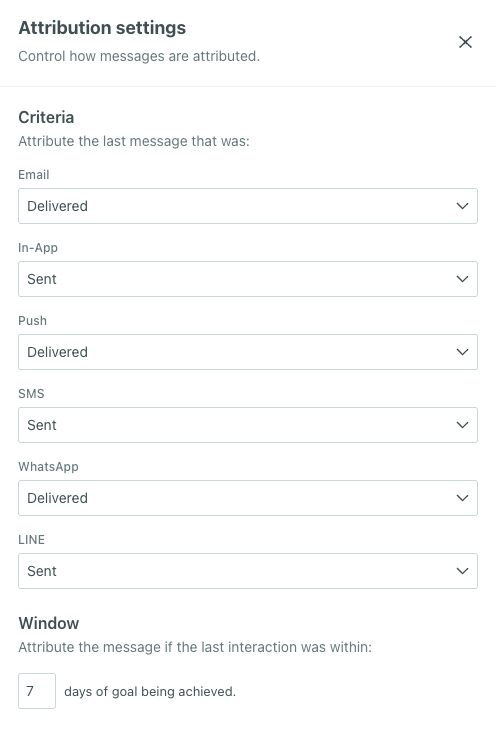
- Under Attribution, click Add attribution source to choose which campaigns and broadcasts count towards your goal. Learn more about sources.
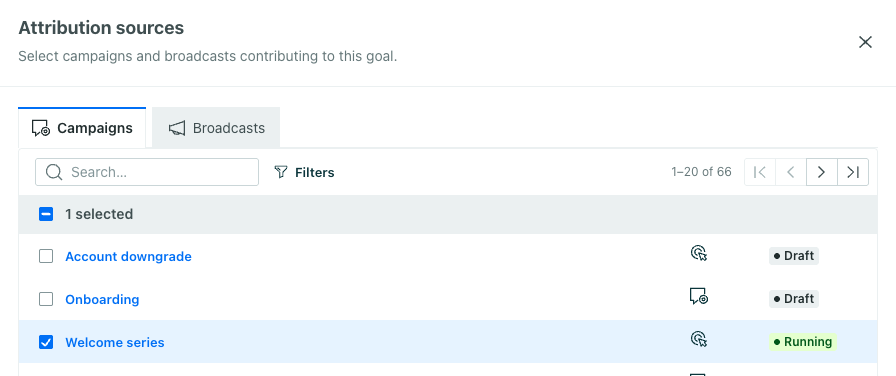
- Click Edit settings to configure your attribution settings. Learn more about attribution.
- Review the message metrics associated with goal achievement. Modify as you see fit. By default, attribution is set to Sent and Delivered metrics across message channels.
- Review the time window for attribution. The window can be up to 90 days.
- Add a Name and Description so you know what you’re tracking. Consider adding Tags to help you organize related goals and workflows.
By default, you’ll see the last 30 days of attributed data after you initially set up your goal, but you can modify this by clicking the calendar dates.
You can’t track goals for data processed before November 2025
Add a source & edit attribution settings
You can add campaigns and broadcasts (newsletters only) as Sources to any goal. We’ll attribute goal achievement to the last message from a source that meets your attribution settings, like an email opened within the last 30 days.
You can’t track goals against transactional messages, anonymous in-app messages, or API-triggered broadcasts.
Under Attribution, click Add source to get started.
Filter for the campaigns and broadcasts you want to track. Results are paginated so you may need to click or to find what you’re looking for.
You can filter by Status (whether the workflow is running). You can also filter broadcasts by Channel.You might include draft campaigns if you’re preparing a goal ahead of a launch. You won’t see attributed data until you activate your campaigns or send your broadcasts.
Save the sources.
Click Edit settings to configure the message metrics and time window for attribution.
Review the Attribution criteria—the message metrics that determine attribution, and change them as you see fit. For instance, maybe you want to attribute achieving a goal to an email that’s clicked, not delivered.
You can learn more about message metrics below:
Review the Window—the timeframe the attribution must take place. By default, this is 7 days. It can be between 0 and 90 days.
Save your settings.
Review your updated sources and attribution data (if your sources have sent messages).
At the top, you’ll see a breakdown of attribution by source. At the bottom, you can learn more about unattributed data: people who achieved the goal outside of your sources.
Attributed vs unattributed goal achievements
Goals use last-touch attribution—when someone achieves a goal, the system looks back and credits the last message from one of the goal’s sources that meets your attribution criteria.
You may also see data for unattributed achievements, which reflect people who met your goal criteria independently of your goal’s sources. These could be goals that were organically achieved or driven by workflows you didn’t add as sources to the goal.
For example, let’s say your goal tracks people who convert from a trial to a paid plan.
- You add your onboarding campaigns as sources. They include email and in-app messages.
- When you view attribution settings, you leave in-app messages as “Sent”, but decide to only attribute achieving a goal to opened, not simply delivered, emails.
- You increase the time window to 30 days given the length of onboarding to make sure you capture all goal achievements.
Let’s look closer at the change in attribution setting. If a person achieves the goal and their most recent email from a source campaign was only delivered, not opened, that email is not attributable. Your workspace finds the most recent message (across all channels and sources) that meets the attribution criteria.
- If that qualifying message occurred within the 30-day window, the goal achievement is attributed to it.
- If no qualifying message exists within the window, it’s unattributed.
Track your goal performance
You can track goal achievements and revenue impact over time from your goal’s page.
By default, you’ll see the last 30 days of attributed data, but you can modify this by clicking the calendar dates.
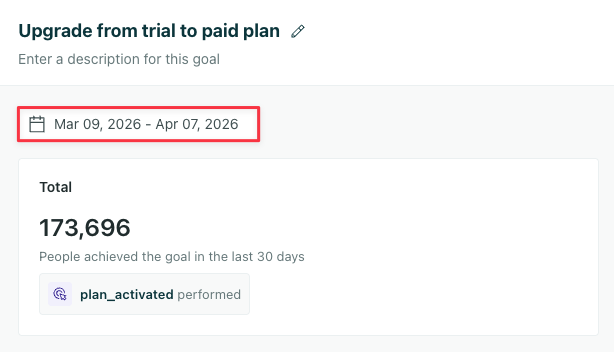
You can’t track goals for data processed before November 2025
Total metric
The Total metric reflects how many unique people have achieved this goal at least once over your selected time period. We don’t aggregate every time a person achieves your goal.
This shows the sum of the data reflected in the Progress chart.
This is also where you’ll see the goal criteria you set earlier.
Impact metric
The Impact metric populates if you set a monetary impact value while setting up your goal. It shows the total revenue associated with people achieving your goal in the time period you selected.
Progress
The Progress chart lets you track goal achievements over time and by source.
If you set both goal criteria and an impact value, the Progress chart will show the total revenue impact of the goals achieved over the selected time period. Otherwise, you’ll only see the count of goals achieved over time.
Total view
By default, you’ll see a Count view which tracks achievement count per day. This can help you track fluctuations over periods of time, and see what days drive the most goal achievements.
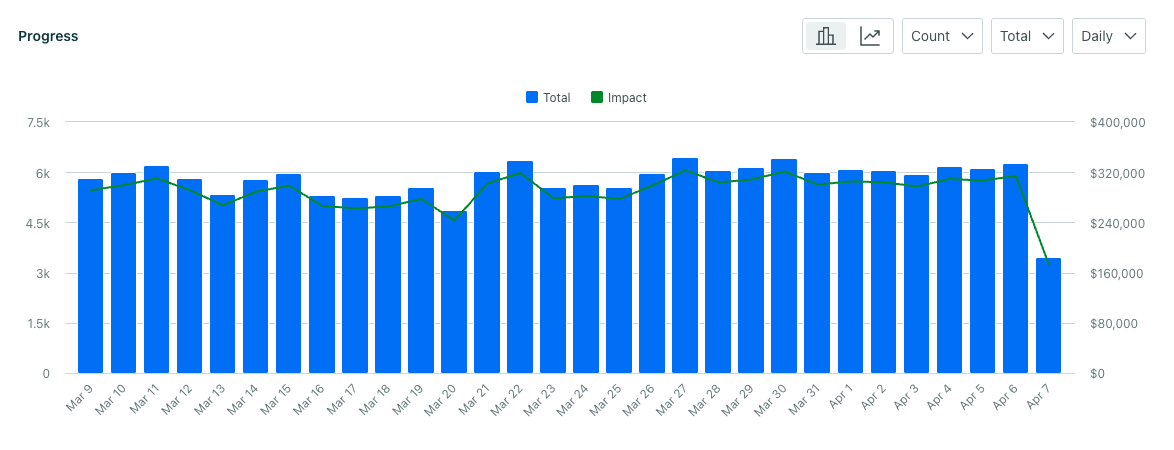
Switch to the Cumulative view to check the overall growth trajectory of your goal over time. This shows whether goal achievement is accelerating, decelerating, or staying steady, rather than period-by-period fluctuations.
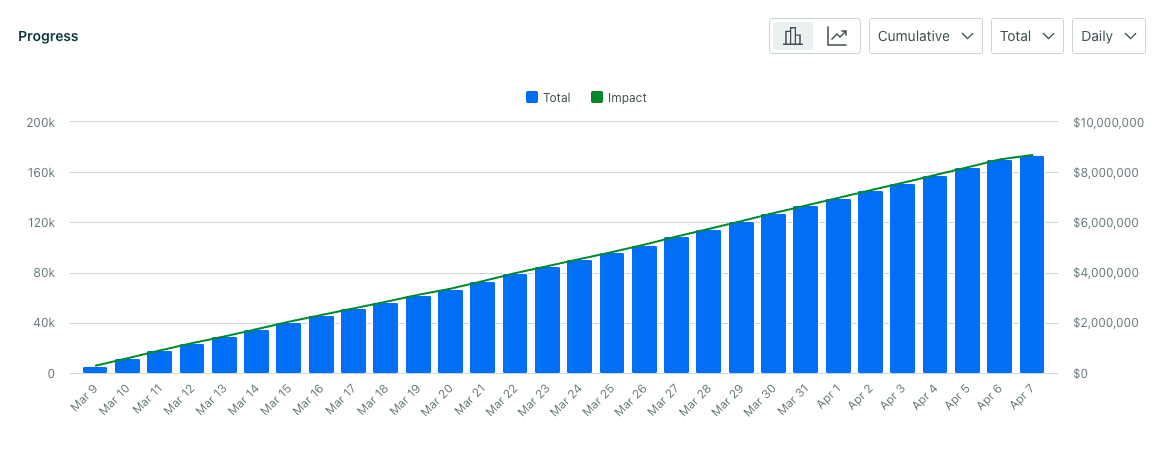
From either view, you can modify a few settings:
- Switch from a Bar chart to Line graph to focus in on the growth trend over time.
- Switch from Daily to Weekly periods depending on the level of granularity you want.
By Source view
By default, this view shows the total goals achieved per attribution source over the selected time period. This can help you track which sources are driving the most achievements, and which are driving the least.
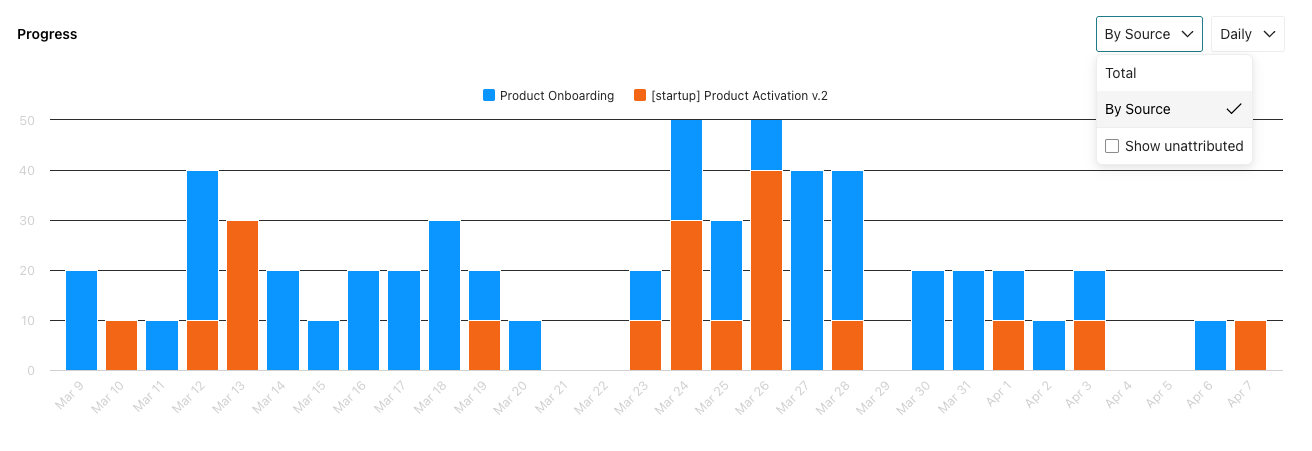
In the view dropdown, select whether you want unattributed sources to show in the chart. Learn more about how unattributed achievements are tracked.
Switch from Daily to Weekly periods depending on the level of granularity you want.
Historical data is always preserved
If you stop, archive, or delete a campaign, your workspace preserves historical data. People who achieved the goal based on these campaigns will continue to count towards your historical performance.
The same is true for broadcasts—you’ll see historical data for broadcasts after you delete them.
On the Sources table, you’ll see the data is attributed to a deleted campaign. This data does not move to the unattributed category.
If you delete people, their achievements will still count towards your goals as well.
Edit a goal
From a goal’s page, you can edit all aspects of a goal:
- Click the calendar dates to modify the time period in view.
- Click Edit goal to modify goal criteria and impact values.
- Click Edit sources to add or remove attribution sources.
- Click Edit settings to modify attribution criteria and time windows.
Delete a goal
To delete a goal, go to the Goals dashboard:
- Click .
- Select Delete goal.
Remove a source from a goal
To remove a source, click Edit sources, select the sources you no longer want to track, and save your changes. Results are paginated so you may need to click or to find what you’re looking for.
Organize your goals
You can add Tags to organize your goals, like you can segments, campaigns, and other data objects in your workspace. You might use them to flag related workstreams and easily filter for them from other dashboards. Learn more about Tags.
Working with goals in external tools
You can already send event data and message-level conversions to external tools via API and data-out integrations. However, you can’t export Goals-specific data: the attribution model, the number of people who achieved a goal, and impact calculations generated by Goals.