

Custom skills
Custom skills teach the agent your team's workflows, brand voice, QA checks, and workspace-specific context.
How it works
The agent has a number of built-in skills that help it understand your workspace and work with Customer.io. You can also create custom skills to give the agent reusable instructions for your workflows, to enforce a particular brand voice, to run QA checks, and to reference workspace-specific context. Note that custom skills are scoped to your user account—they are not shared with other users in your workspace.
Custom skills are reusable instructions that the agent can read during a conversation. The agent can use these skills as a part of any conversation, or you can call them explicitly with a slash command—like /<your-custom-skill> prompt.
You can use custom skills for things like:
- Review automation drafts before launch
- Write messages in your brand voice
- Audit segment conditions for stale events or attributes
- Summarize weekly broadcast performance
- Explain your team’s naming conventions
Create a skill
You can create a custom skill by prompting the agent at any time. If you find that the agent completed a task particularly well and you want to reuse the prompt and process for future tasks, you can tell the agent to create a skill for it.
But we also have an interface where you can create and edit skills directly.
- Go to Agent > Skills.
- Click New skill and choose how you want to create the skill:
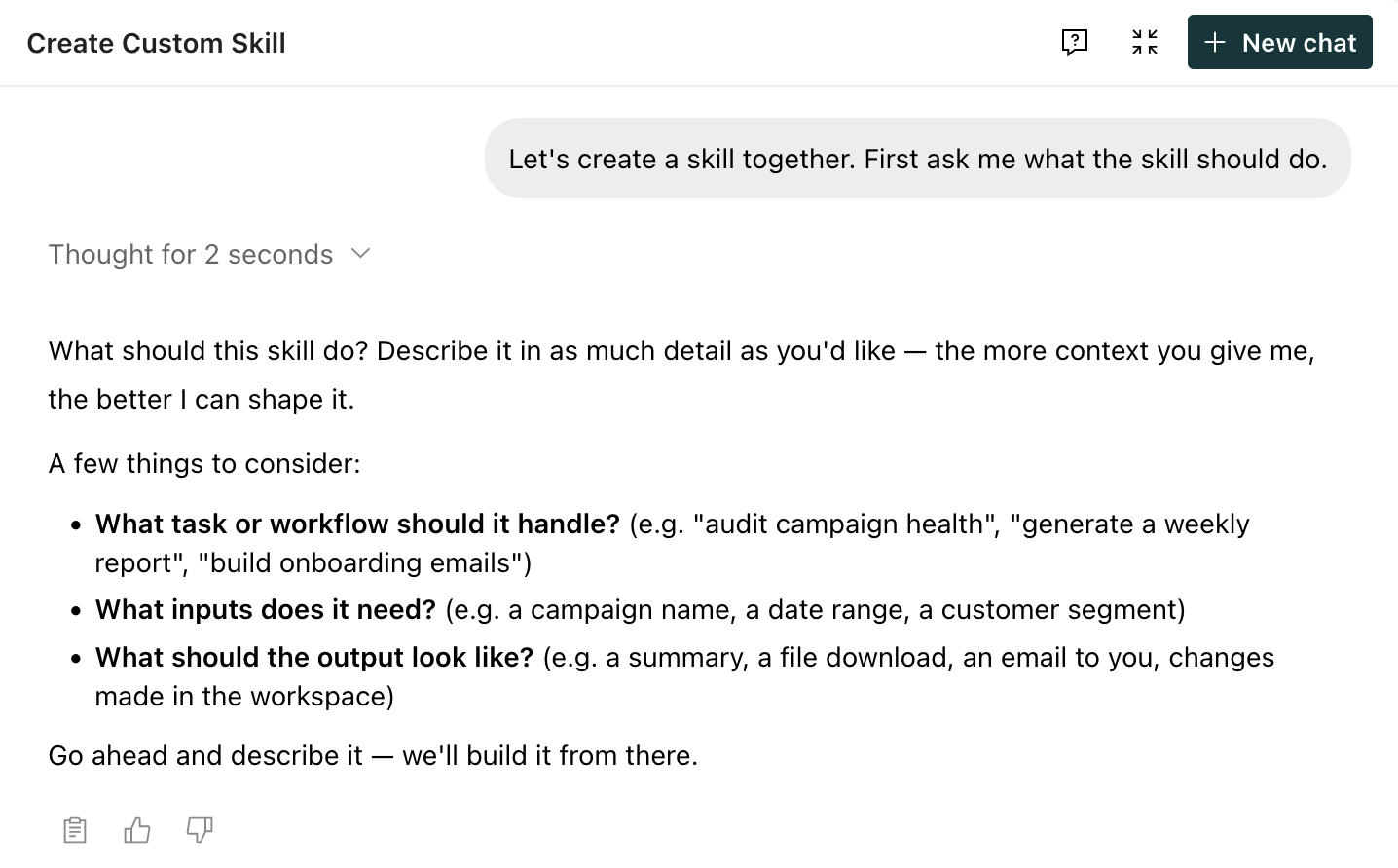
- Create with Agent starts a conversation where the agent helps you draft the skill.
- Write skill instructions opens a form where you enter the skill name, description, and instructions. You might use this option if someone’s shared a skill with you that you want to add to your own agent!
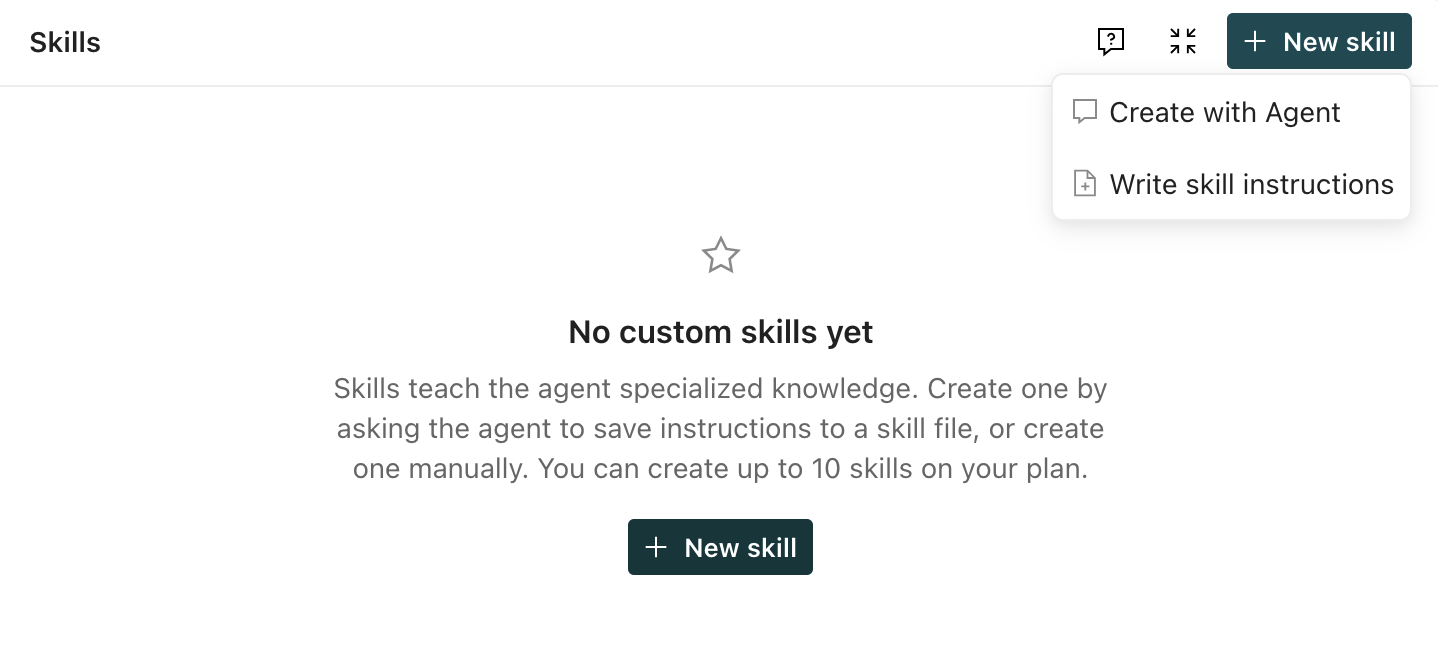
- Use the agent or write the instructions for your skill.
Tips for writing skills
- Keep each skill focused on one workflow or reference topic.
- Keep skills as small as possible. The agent spends context on every skill it reads, so shorter skills leave more room for the current conversation, workspace data, and task details.
- Include examples when the agent needs to match a format, tone, or decision pattern.
- Use direct instructions like “Check…” or “Ask…” instead of broad goals.
- Avoid adding secrets, API keys, or sensitive customer data to skill content.
- Update skills when your team’s process, data model, or brand guidance changes.
Here’s an example of skill instructions:
When I ask you to review a campaign before launch:

1. Check that every message has a clear goal and a matching call to action.
2. Check that every segment or trigger condition uses events and attributes from our current data plan.
3. Review timing, wait steps, and exit conditions for conflicts.
4. Summarize risks as launch blockers, recommended fixes, and optional improvements.
Use a custom skill
The agent will reach for your custom skills whenever it thinks it’s the right thing to do. But you can also call custom skills explicitly either by using the skill name or with a slash command—like /<your-custom-skill> prompt.
Manage skills
Go to Agent > Skills to see your custom skills. Each skill shows its name, description, and when it was last updated.
Click a skill to edit its name, description, or instructions. You can also delete a skill from its detail page. Deleting a skill permanently removes it and frees up one skill slot on your plan.
Plan limits
Your plan type determines how many custom skills you can create. Each user can create up to 3 skills on an essentials plan. On a premium or enterprise plan, each user can create up to 10 skills.
If you reach your limit, you might need to delete a skill you no longer need before you can create another one.
Skills must be smaller than 1 MB. But, in practice, you’ll want to keep skills much smaller than that. The agent spends context on every skill it reads, so shorter skills leave more room for the current conversation, workspace data, and task details.