Ask the agent
UpdatedThe agent is your personal assistant or coworker in Customer.io. You can prompt it for answers or ask it to help you do things in Customer.io.
Click Agent in the sidebar or click Ask Agent in the bottom right to open a fresh conversation.
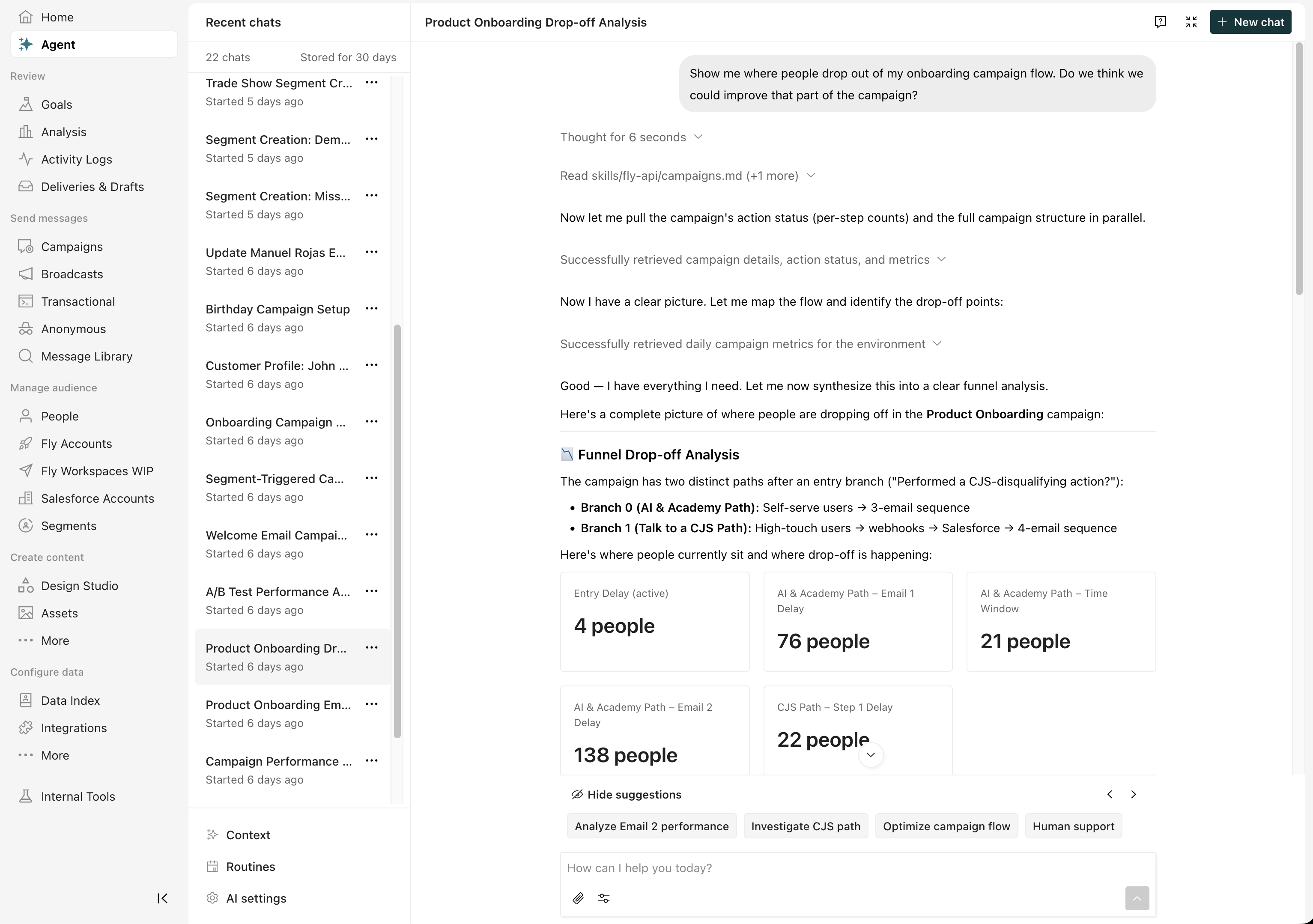
You can ask it to do just about anything that you can do in Customer.io. Give it a prompt like:
- “Create a segment with people that opened an email in the last 90 days.”
- “What’s the click-to-open rate for my birthday campaign?”
- “Of my onboarding and welcome campaigns, which had the lowest deliverability this month?”
- “How do I get started with Design Studio?”
- “In Design Studio, create a welcome email. Greet the customer with their first name and fall back to ‘valued customer.’”
To use the agent, your workspace must have Customer.io AI enabled. You can also adjust how AI features behave in your compliance prompt settings.
What can the agent do?
Our agent can do just about everything you can do in Customer.io. It can create segments, campaigns, newsletters, Design Studio emails, and more. Beyond working in Customer.io, it can search documentation and help you troubleshoot issues in your workspace.
The agent operates with your permissions. It can only access data and perform actions that your role allows. Before taking high-impact or destructive actions, it’ll ask you for confirmation. Pay attention to confirmation prompts and allow or deny actions depending on your comfort level.
The agent also remembers context from your previous conversations and learns your preferences over time, so it gets more helpful the more you use it.
We’re actively working on expanding the agent’s capabilities. Make sure you submit feedback to help it (and us) improve over time!
What the agent can’t do
The agent works within Customer.io. It doesn’t have access to external services or data sources. Here’s what it can’t do:
- Connect to your external databases. The agent can’t query your SQL databases, data warehouses, or other external data stores. It can help you configure integrations but it can’t access external data sources directly.
- Access external websites or third-party APIs. The agent can search Customer.io documentation for you, but it can’t browse the web, visit URLs, or reach out to third-party services on your behalf. It can help you set up Customer.io integrations and connections with those services.
- Send live messages. The agent can help you set up campaigns and broadcasts but they go through your normal approval and sending flows. It can’t send messages on its own.
Data the agent can access
The agent uses data about you, your business context, and the current page in Customer.io to help it better understand your needs and help you do things in Customer.io. It also has access to data like people, events, and objects, and metrics for campaigns and broadcasts.
Information the agent uses includes, but is not limited to:
- Your name, ID, and timezone
- The current page URL
- The name and ID of your account
- Attributes for people, events, and objects
- Metrics for campaigns and broadcasts
The agent is limited by your permissions. It never has access to more information than you do.
Write effective prompts
The more context you give the agent, the better it can help you. Here are some tips for getting the most out of your conversations:
- Be specific. Include the names of campaigns, segments, attributes, or other resources. “Check the deliverability of my Onboarding Welcome campaign” is better than “check my campaign.” Providing exactly what you want the agent to do helps it give you the best possible answer.
- Explain your goal. Tell the agent what you’re trying to accomplish, not just the immediate task. For example, “I want to re-engage people who haven’t opened an email in 60 days” gives the agent enough context to suggest a complete approach.
- Share what you know. If you’ve already tried something or have specific requirements, tell the agent. This helps it skip suggestions you’ve already ruled out.
- Break complex requests into steps. If you need help with a multi-step process, start with the first step and build from there. The agent remembers context within a conversation, so you can iterate.
Start a conversation
To start a conversation with the agent:
- Click Agent in the sidebar or click Ask Agent in the bottom right to open a fresh conversation.
- Prompt the agent: choose from the suggestions, ask a question, or give a command.
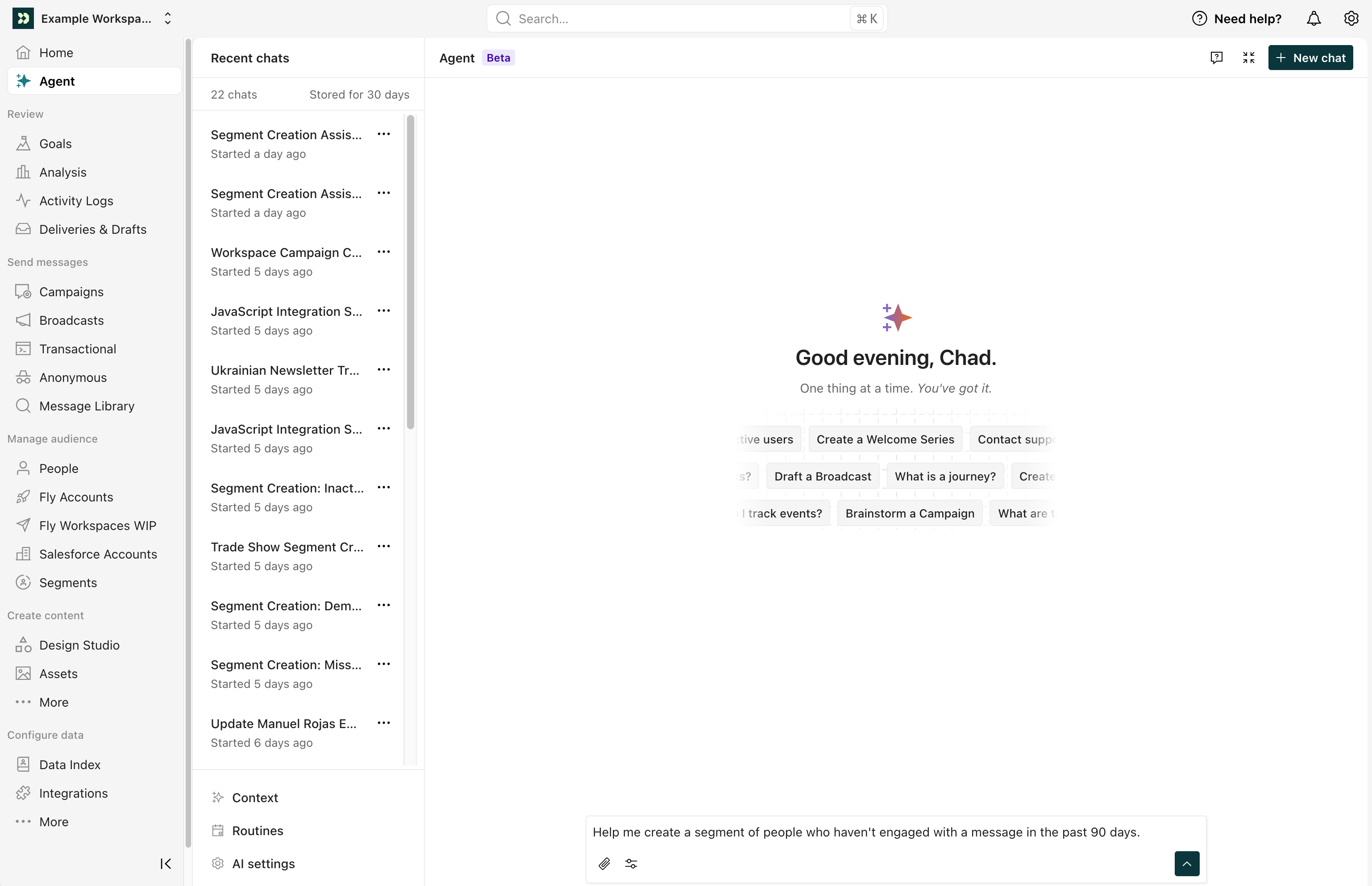
After you start a conversation, you can continue the chat by choosing further suggestions or typing another question. You can also learn more by following the links in the References bubble at the bottom of each response.
We automatically save your conversation history. You can revisit and continue previous conversations within 30 days of starting them. After 30 days, we delete the conversation.
Upload images
Upload images to extract information from them and provide the agent with more context for your conversation. You can upload files with JPEG, PNG, GIF, and WebP extensions. Files must be smaller than 10 MB. The agent doesn’t support video or other file types.
- Open the Agent panel.
- Click under the text input area, and select your file.
- Ask the agent a question or request information about the image. For instance, you can request it extract the text for you or generate alt text.
- Click enter or select .
Here are some examples of how you could use this feature:
- Upload an image for your emails and request the agent generate alt text.
- Upload charts from a third-party analytics tool and request it come up with recommendations based on the data.
Manage conversation history
If you click the Agent icon in the sidebar, you’ll see a list of your conversations. You can click on a conversation to continue it or click the three dots to the side of the conversation to manage it.
If you open the agent using Ask Agent, click in the agent panel, then choose History to manage your chats.
We automatically save your conversation history. You can revisit and continue previous conversations within 30 days of starting them. After 30 days, we delete the conversation permanently.
Your chat history is available across all workspaces you have access to; you can view conversations started in Workspace A when you’re in Workspace B. You can delete your conversations to remove clutter or rename them to more easily find them when viewing the list.
Delete conversations
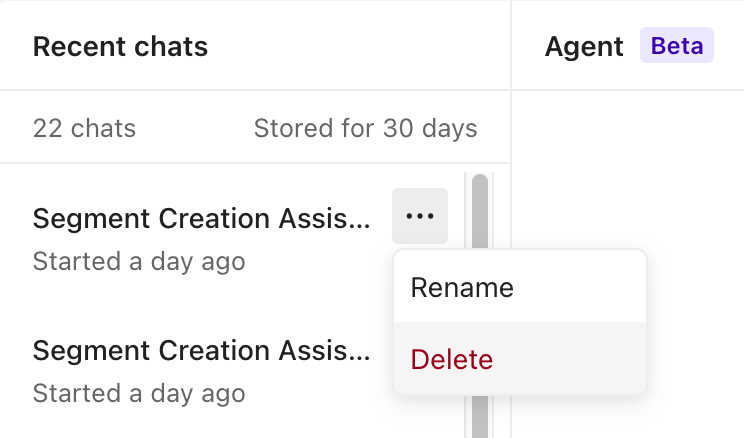
To delete a conversation select it, click and click Delete.
Rename conversations
To rename a conversation select it, click and click Rename.
Edit your business context
Click Context to edit your business context. The agent uses your business context to better understand your needs and generate responses. For example, you can modify the tone of agent responses and content analyses or change the business info shared with AI.
Submit feedback
If you run into issues with the agent, let us know! At the bottom of any conversation, click Give feedback, describe the issue then submit it so our team can review.